Hello,
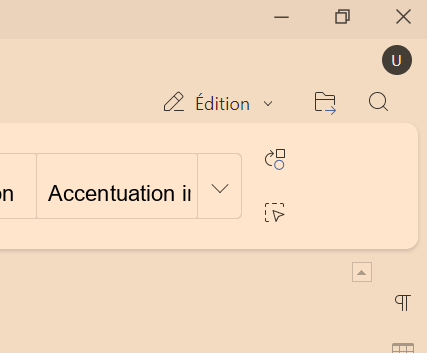
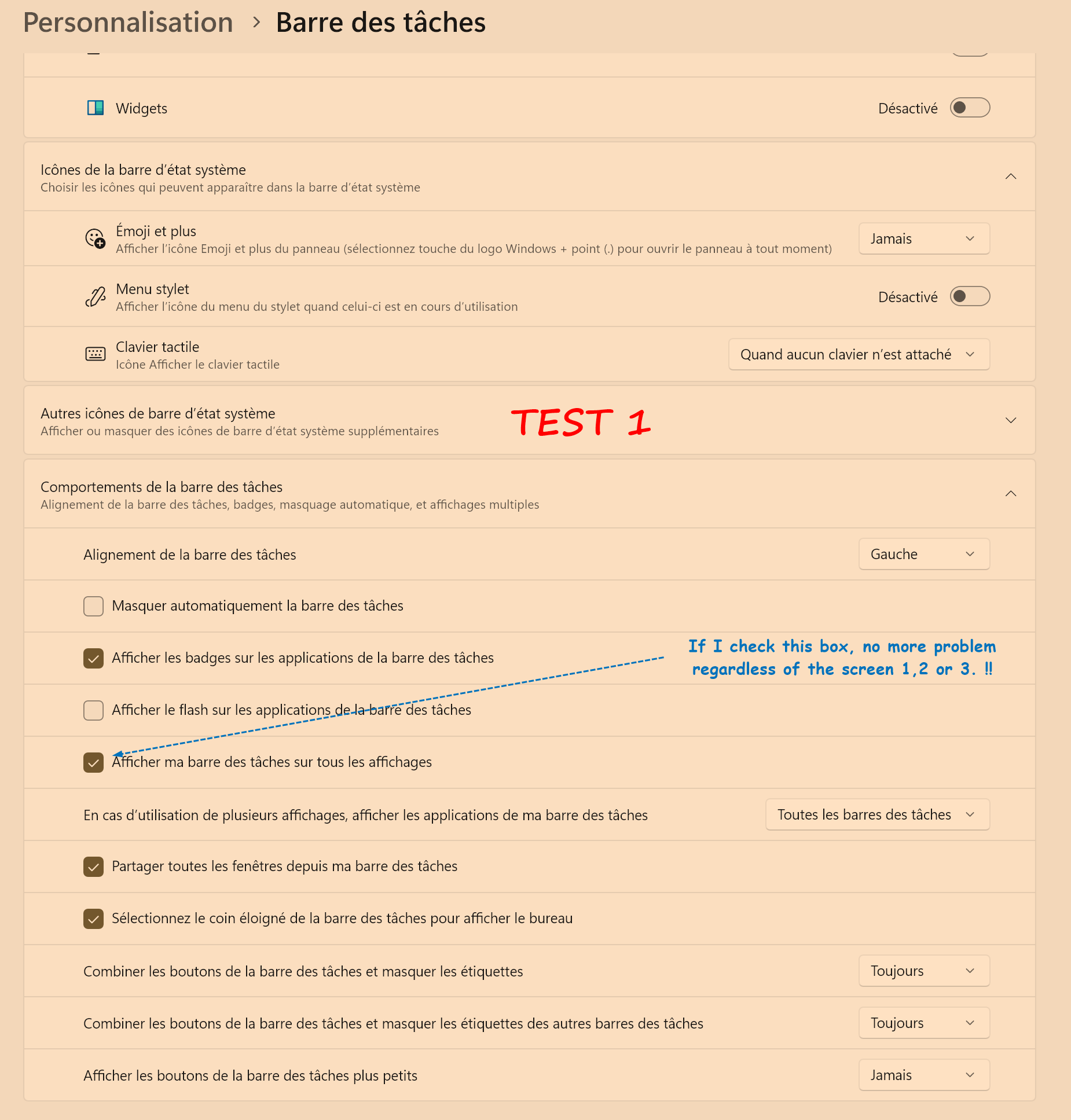
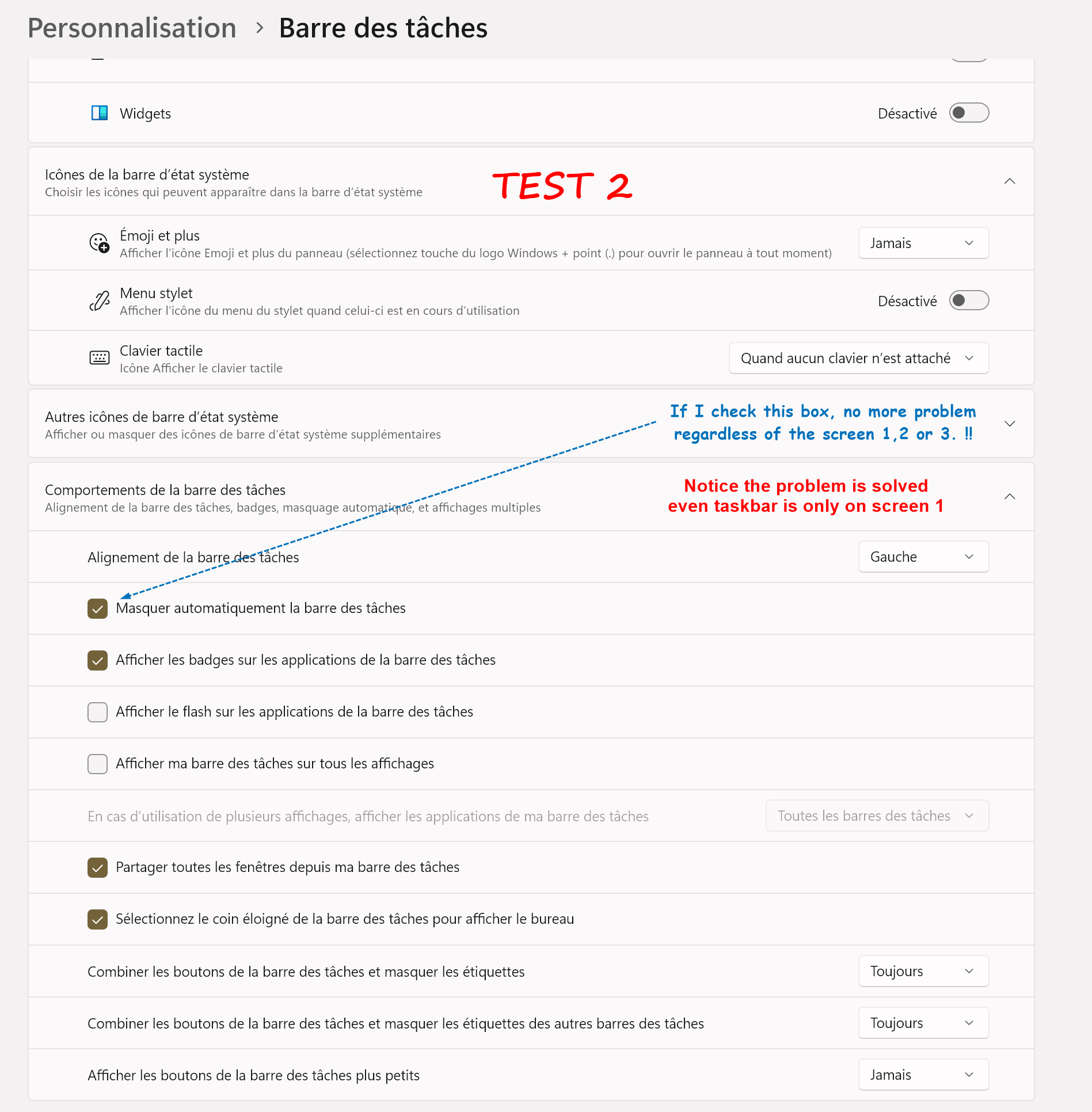
question in the screenshot
regards.
jn
Hello @jnr ,
We can see the window control buttons are missing. To help resolve this, could you please provide:
Hello @Nurullo
I use Win11. It’s about Onlyoffice desktop.
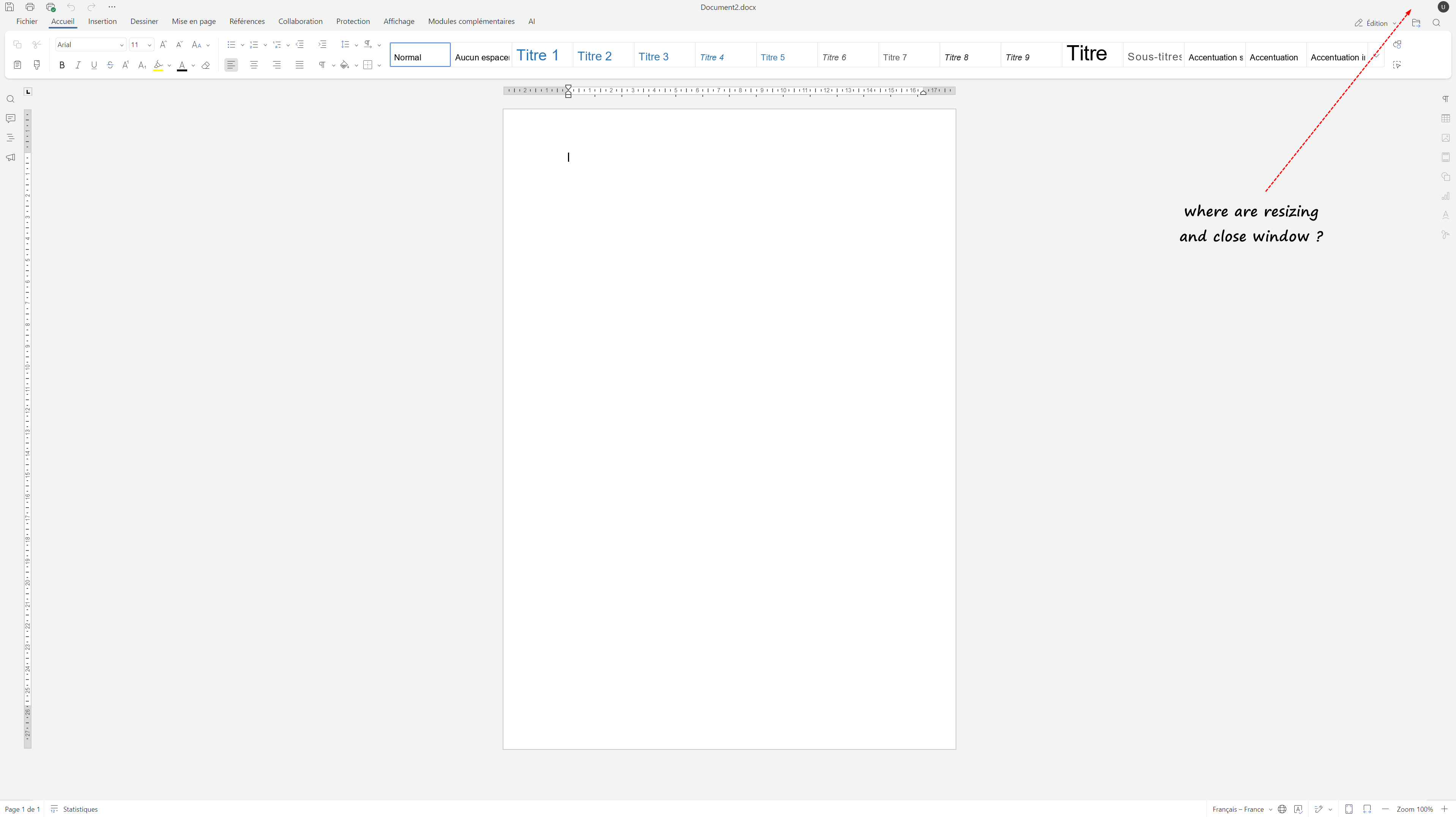
As you can see, sometimes everything is ok like image above. And sometimes, I need to shutdown the desktop with task manager because I have nothing to control the windows, like in the previous screeshot.
Hello @jnr ,
Thank you for the additional details.
We tested ONLYOFFICE Desktop Editors v9.2 on Windows 11 and were unable to reproduce the issue — the window control buttons appeared correctly in our tests.
Any steps to reproduce the issue would be very helpful for our team to investigate further.
Best regards
Hello @Nurullo ,
Thanks for your help.
The problem is random. For now, I haven’t been able to find a logical reason for it.
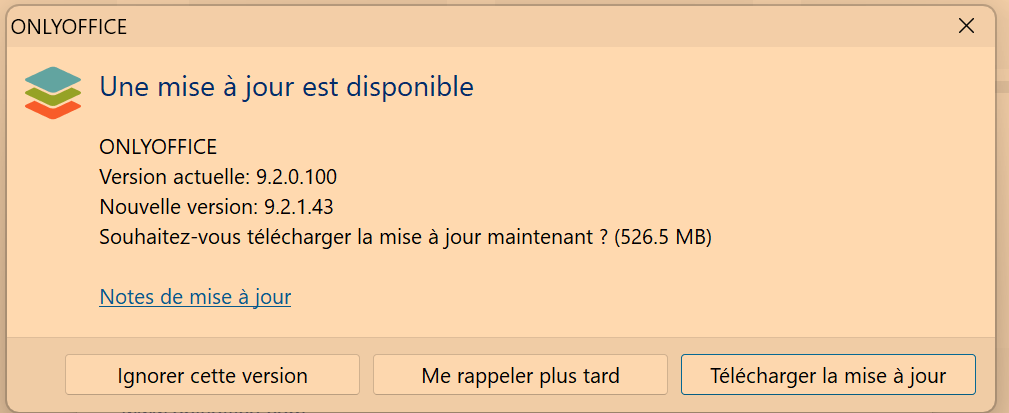
I just checked for updates. I’m going to install 9.2.1.43.
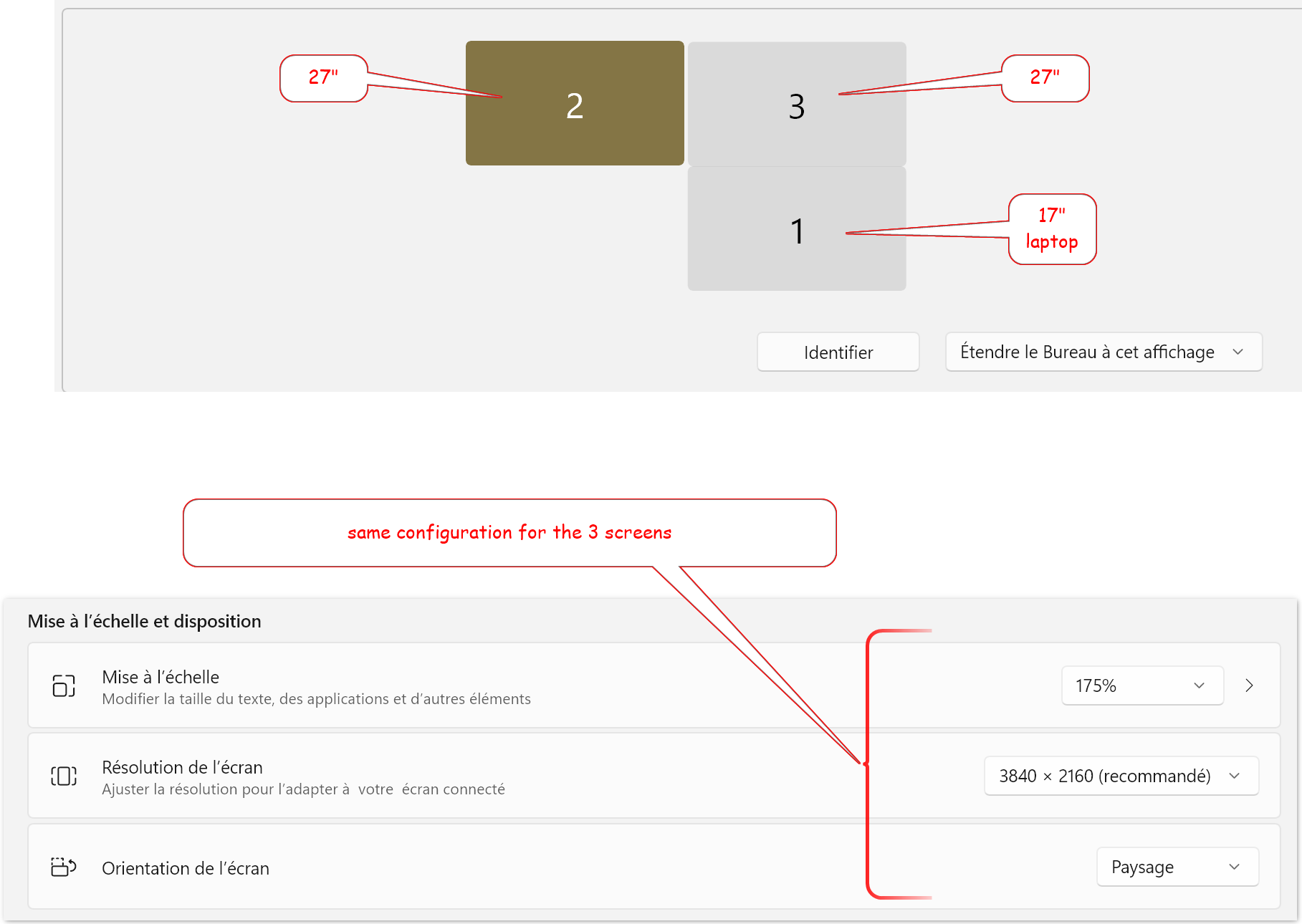
I use a 17" 4K Gygabyte Aero laptop with 2 x 27" 4K monitors.
I keep the discussion open.
Give me a few weeks to see if the problem recurs with the latest version.
Hello @jnr,
Sounds good! Let us know if the issue returns after updating.
Hello @Nurullo ,
I know how to reproduce the bug.
At first here is my configuration.
I open OnlyOffice desktop. I put the window on screen 2. Resizing and close window are present.
If I reduce the OnlyOffice window from screen 2 and I want to re-open the window, I click on the icon in screen 1 task bar.
At this moment, the OnlyOffice window reappears in screen 2 but resizing and close window are not present, and I can no longer control Onlyoffice.
I film the process. How can I send it to you ?
Hello @jnr
You can upload your video reference to any cloud storage and share a link to it. As soon as you get next trust level you will be able to attach files directly to your replies. You can find more information about trust levels here: Community rules - #14 by Constantine
Hello @Constantine
here is the link.
Thank you very much for the video. We will run tests according to the provided description, please await an update on this issue.
@jnr, we did not manage to reproduce the issue yet, thus I am asking for more information:
Hello @Constantine
Let me few day to investigate.
Hello @Constantine
You’re right, it’s a taskbar issue.
Notice I have to close OnlyOffice between each change to the taskbar setup in order to reproduce the problem or solution.
Thanks. Do I understand correctly that you found the cause if the issue?
Hello @Constantine ,
I found how to reproduce the problem, which seems specific to my graphics configuration, but I don’t have the solution.
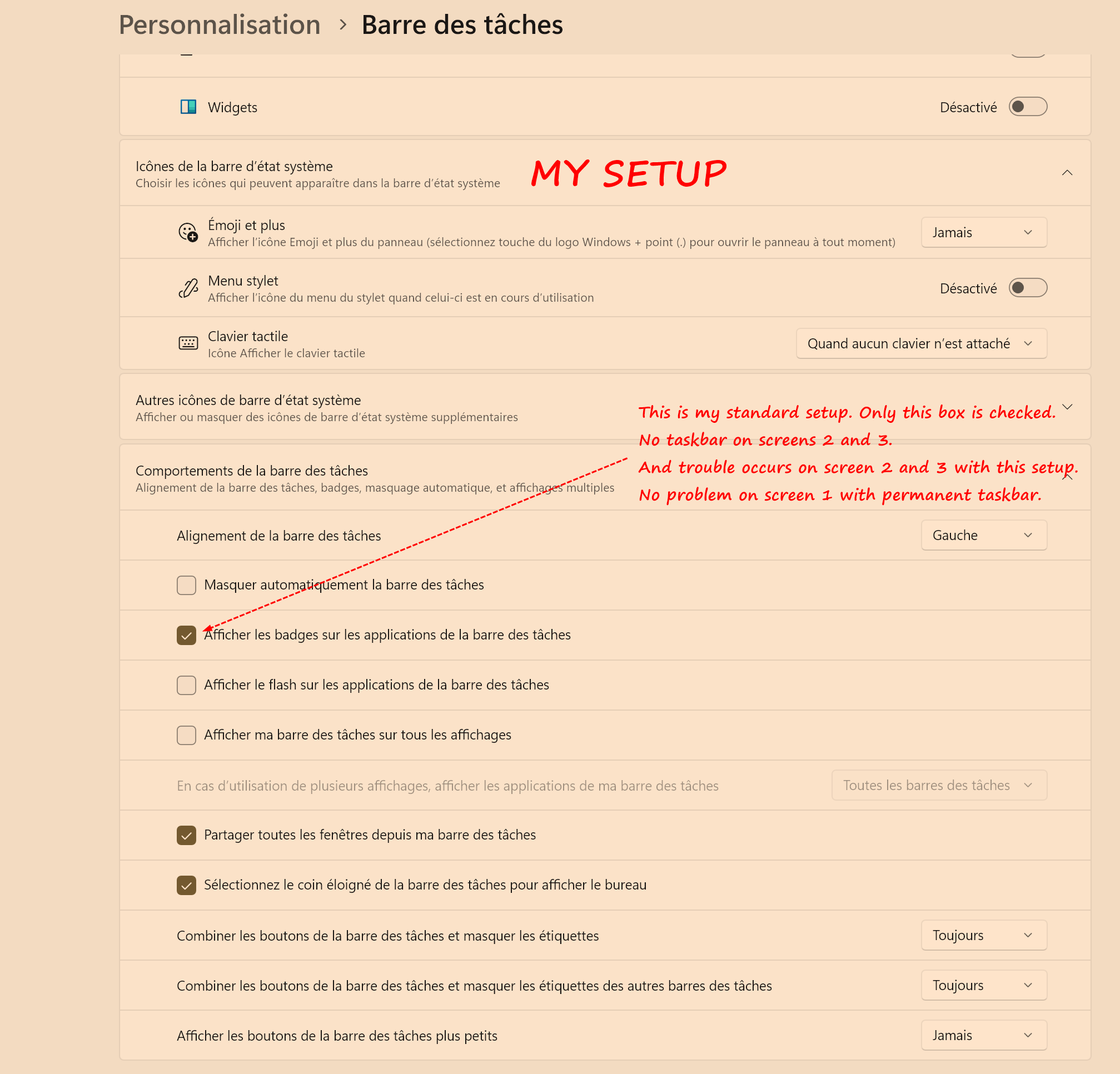
I want to keep my setup with the taskbar permanently visible only on screen 1. No taskbar on screens 2 & 3.
Of course, I can live with this problem, but if an update can fix it, that’s better.
I think that depending on the taskbar configuration, the OnlyOffice window doesn’t fit the screen properly when you reopen it after minimizing it.
I think that the OnlyOffice control bar, which contains the close button and the resize icon, doesn’t disappear, but is outside the visible area of the screen.
Hope this helps.
Sorry, I am a bit confused. Are you configuring the checkboxes from the screenshots for each monitor separately?
Hello @Constantine,
Something is wrong if you didn’t understand my messages.
Do you think it is possible to configure the behavior of the taskbar for each monitor?
Do you have expertise in OnlyOffice or Windows, or are you just a regular user of OnlyOffice?
Let me know, please
I am only confused by the description on your screenshots. I may assume that “MY SETUP” screenshot is a setup in which issue reproduces, either of “TEST 1” and “TEST 2” do not produce the behavior, is that correct?
Additionally, on the recorded video - do you open Desktop Editors on main monitor initially and then re-open it after minimizing on an external one with “MY SETUP”?
Hello @Constantine
First question is correct. It’s what I written in the screenshot.
Second question :
I open OnlyOffice Desktop on monitor 1 (laptop), then I move the window app to screen 2 (or 3), then I reduce the window app, then I click on OnlyOffice Icon in the taskbar (only visible on monitor 1 (laptop)) and the OnlyOffice window reappear on screen 2 (or 3) without reduce/resize/close icons.
Nothing new…
As you see, I already gave you all the things I get and answered all your questions.
And you, have you answered my questions ?
Thanks for the information.
If you are talking about “expertise”, then:
Hope this is what you are looking for.