OnlyOffice Desktop Editors doesn’t work: I start it up and after that it closes.
I tried reinstalling it from the official website 4 or 5 times, sometimes deleting the OnlyOffice AppData folder.
OS version Windows 11 24H2
App version: 9.0.4
Downloaded from the onlyoffice website.
You can see in this screen that the app gets stuck in this screen:
To help us reproduce and troubleshoot this, could you share:
Your PC specs (e.g., CPU, RAM, GPU, and any relevant drivers)?
A short video of the installation process and attempting to open the editor (showing the stuck screen)? You can upload it to Google Drive or similar and share the link.
This will give us a clearer picture of what’s happening. Appreciate your help!
With the first solution, i opened “Win + R”, and wrote “%ProgramFiles%\ONLYOFFICE\DesktopEditors\DesktopEditors --disable-gpu”.
I opened the application, same problem.
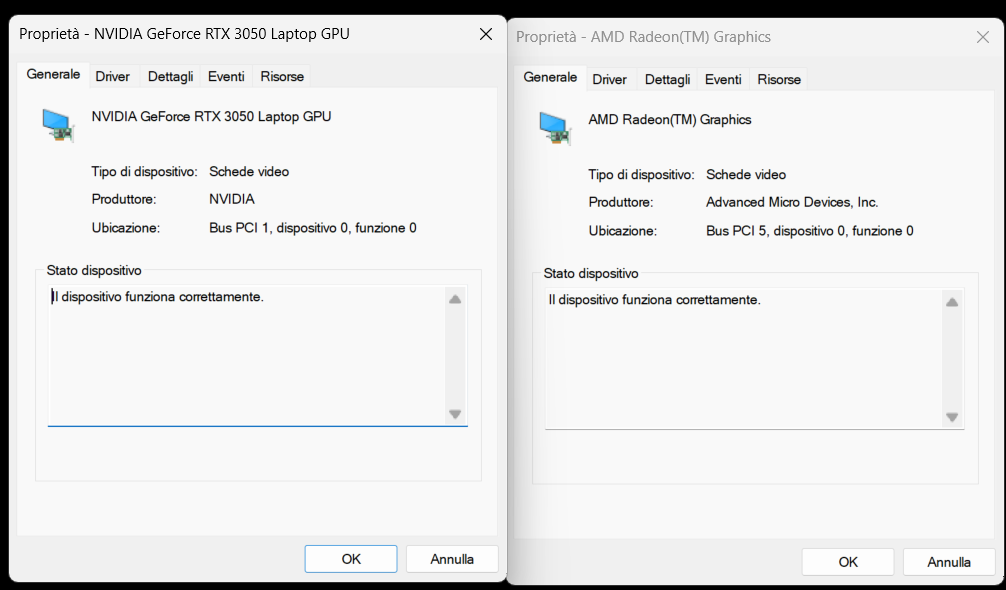
ROG Strix Scar G513RC, with 16GB of RAM, a 512GB SSD with 40GB left, an AMD Ryzen 7 68000H with Radeon Graphics and an NVIDIA 3060 Laptop GPU.
There is the video showing how I installed OnlyOffice.
The strange thing is that I downloaded (from the official website) the Desktop Installer, opened it and clicked only “I agree”, “Yes”, changing nothing. Same with the Online Installer.
I haven’t seen this exact behavior before, so thanks a ton for the video demo of the installation process and your PC specs!
I’ve passed everything to our team, and we’ll dig into the cause. I’ll keep you updated as soon as we have insights or a fix.
Appreciate your patience and detailed info!
Once the app opens (or tries to), press F1 to open the console and look for any error messages. Please share a screenshot or copy-paste the errors.
Check System Logs:
Look for errors in the Windows Event Viewer after launching the app:
Press Win + R.
Enter: eventvwr.msc /c:Application
Press Enter.
Check for any errors related to ONLYOFFICE (e.g., under “Application” logs) and share details or a screenshot.
These should give us more clues about what’s causing the app to close after getting stuck. We’re still investigating and will keep you posted. Thanks for your patience and help!
Thanks for sharing the Event Viewer error log — the crash tied to graphics.dll in ONLYOFFICE Desktop Editors! We’re analyzing potential causes and solutions for this issue.
I’ll keep you posted as soon as we have updates or a fix. Appreciate your patience and help in getting us these details!
A look at the System > Display > Graphics settings? You can open it via Win + R, then type ms-settings:display-advancedgraphics, and hit Enter. Please check if ONLYOFFICE Desktop Editors is listed there, and let us know.
This will give us more clues about the graphics-related crash. Appreciate your help!
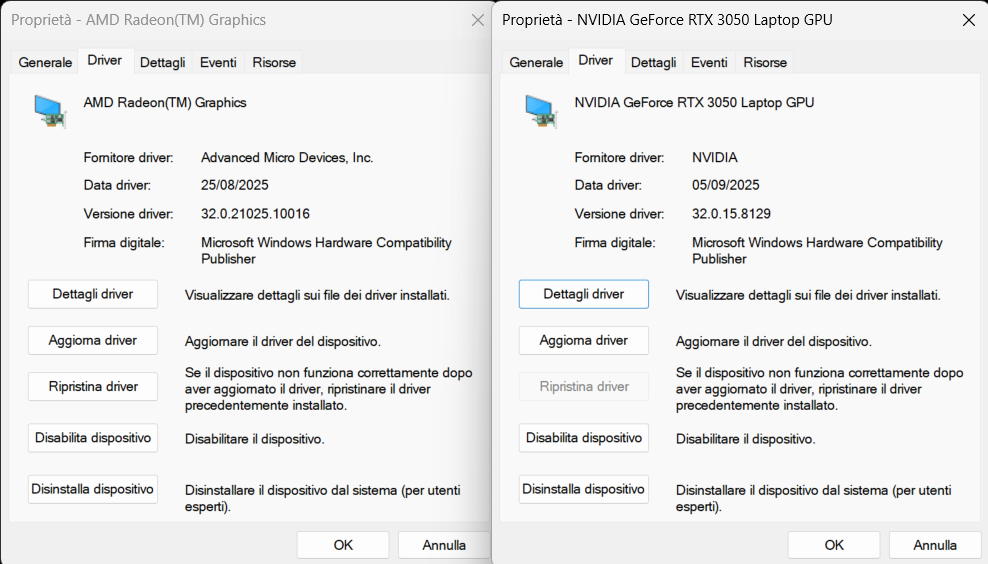
Thanks for the screenshot — it’s a great start! However, we need to see the Driver tab in your Device Manager settings for the graphics card to check the driver details (e.g., version and date). Could you share a new screenshot focusing on that tab?
To dig deeper into the graphics.dll crash, would you be okay with sending us the “unsigned” DLL file with logs?
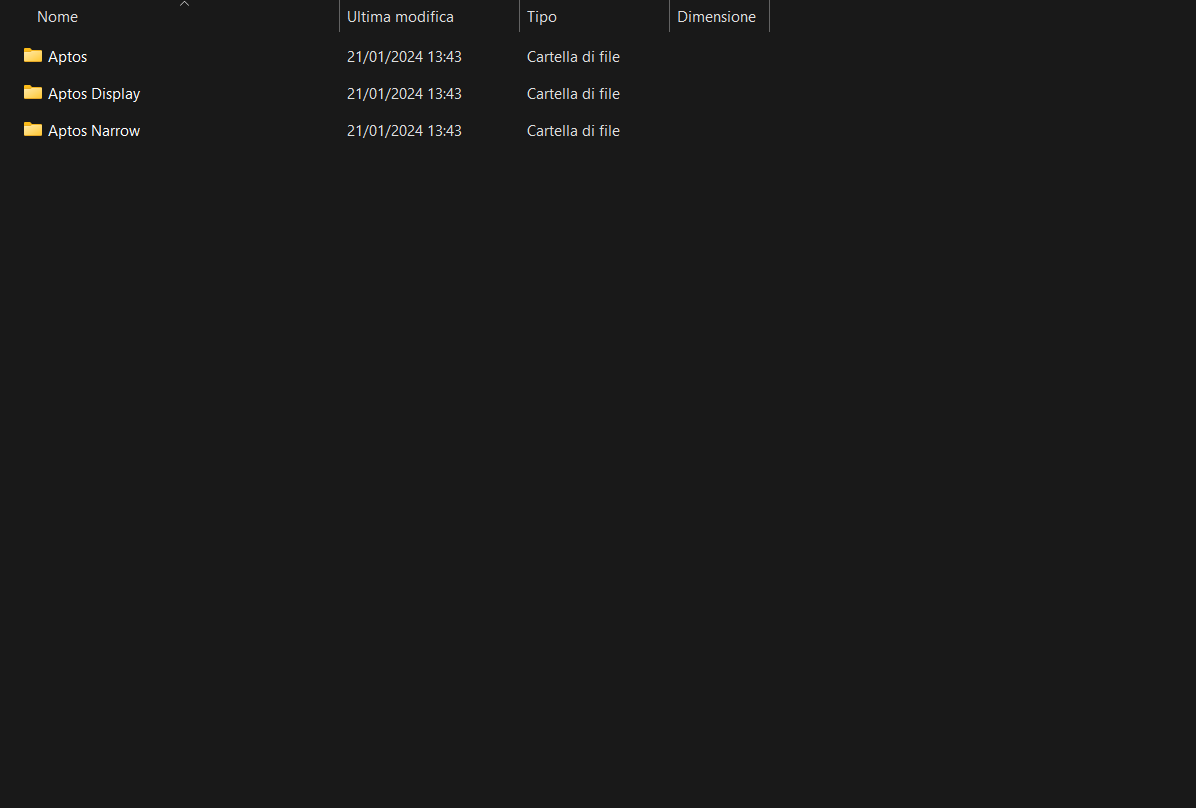
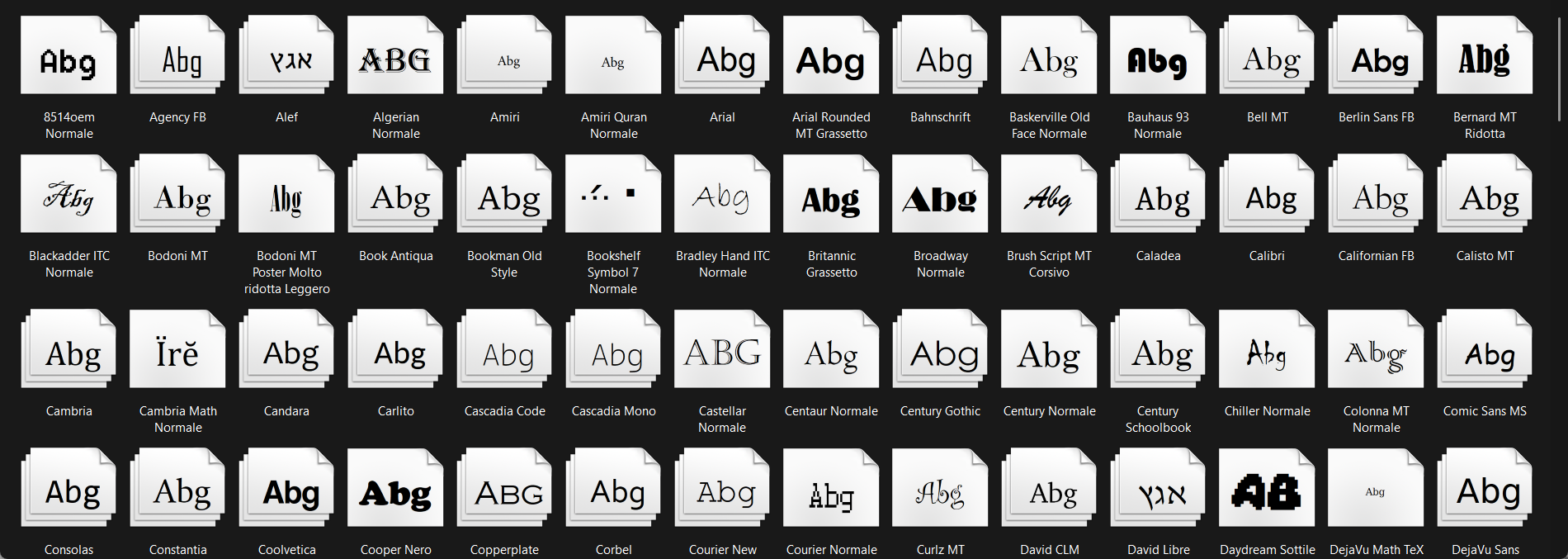
If not, could you share the contents of these folders instead (to check fonts, which might be related)?We can chat privately via PM to keep it off the public thread:
Sorry for the delay — things have been piling up, and I appreciate your patience while we dig into this graphics.dll crash in ONLYOFFICE Desktop Editors on Windows 11 24H2!
Does the issue persist after updating to the latest v9.1.0? (Released October 15 with some graphics-related tweaks.) If so, try the --disable-gpu flag again: Win + R > "%ProgramFiles%\ONLYOFFICE\DesktopEditors\DesktopEditors" --disable-gpu > Enter.
To help us compare, could you share the contents of these folders via PM (e.g., screenshots or a zip of the files)?
Hi, the screenshots are up there.
Unfortunately, OnlyOffice didn’t worked.
I think the problem is with the memory. In the Crash.DMP, opened with WinDbg it says
“FAST_FAIL_STACK_COOKIE_CHECK_FAILURE” or a thing like this.
I think without buying a new laptop this is really hard to fix, but I bought my laptop in December 2023, so it isn’t really old.
I can’t change the PC only for an application. I’m sorry, but I think I can’t use anymore OnlyOffice.
I’m really unhappy about this. I hope you can fix it.
We’re truly sorry for the ongoing frustration — we hate that ONLYOFFICE isn’t working smoothly on your setup.
We’re still digging into the graphics.dll crash and the FAST_FAIL_STACK_COOKIE_CHECK_FAILURE in the DMP (thanks for sharing that detail — it’s helpful). Unfortunately, no luck reproducing it yet, but we won’t give up.
If anyone ever has this error and checks in their Task Manager - close all the OnlyOffice Desktop Editors.
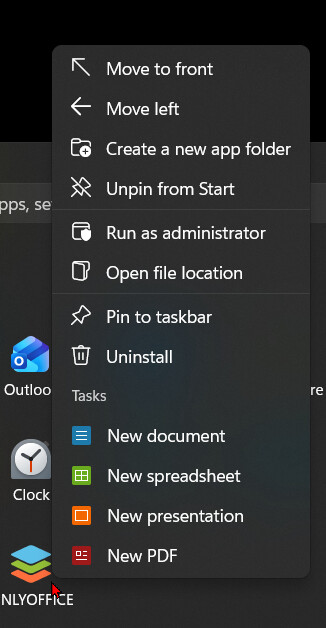
Once done, right click on your OnlyOffice and choose to create a new document. This has been my workaround for many years. It for some reason seems to bypass any nonsense that launches it.
Hope this helps someone and saves you a lot of time in the process.