I use
ONLYOFFICE: desktop editors: 9.0.4.50 (x64 exe)
OS: windows 10 Pro 22H2
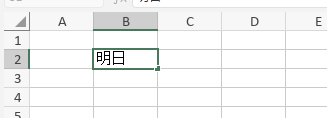
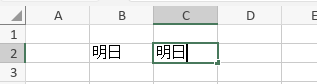
If I type Japanese in spreadsheet, convert, then type the right arrow, the same word will appear in next cell.
Other case, If I type Japanese, convert, then type the right arrow, the cursor will move, then type the left arrow, the same word will appear in next cell.
Thank you for reporting the issue with Japanese text input in ONLYOFFICE Desktop Editors and providing the video! It’s very helpful and should assist us in reproducing the problem for further investigation.
We’ve tried to reproduce the problem in both web and desktop versions but haven’t been able to so far.
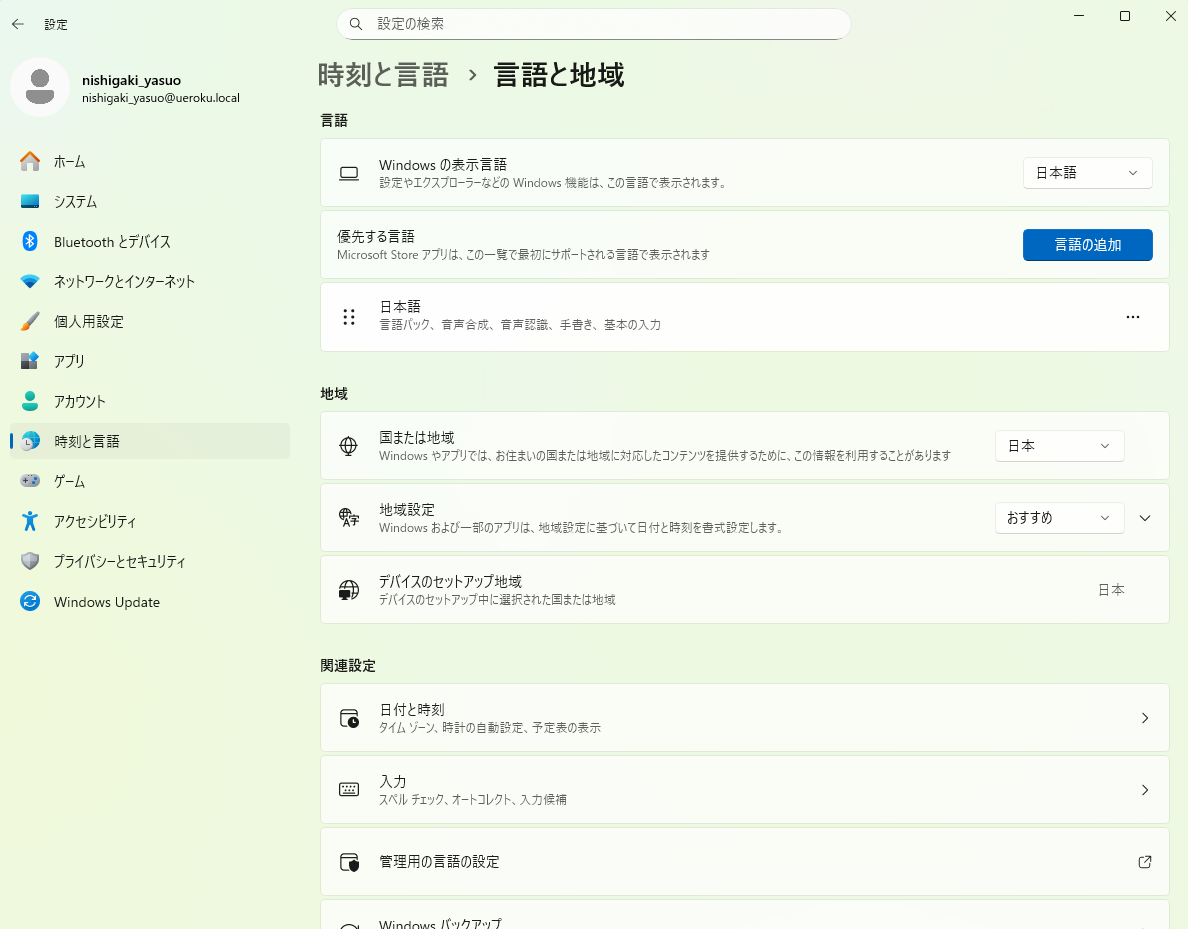
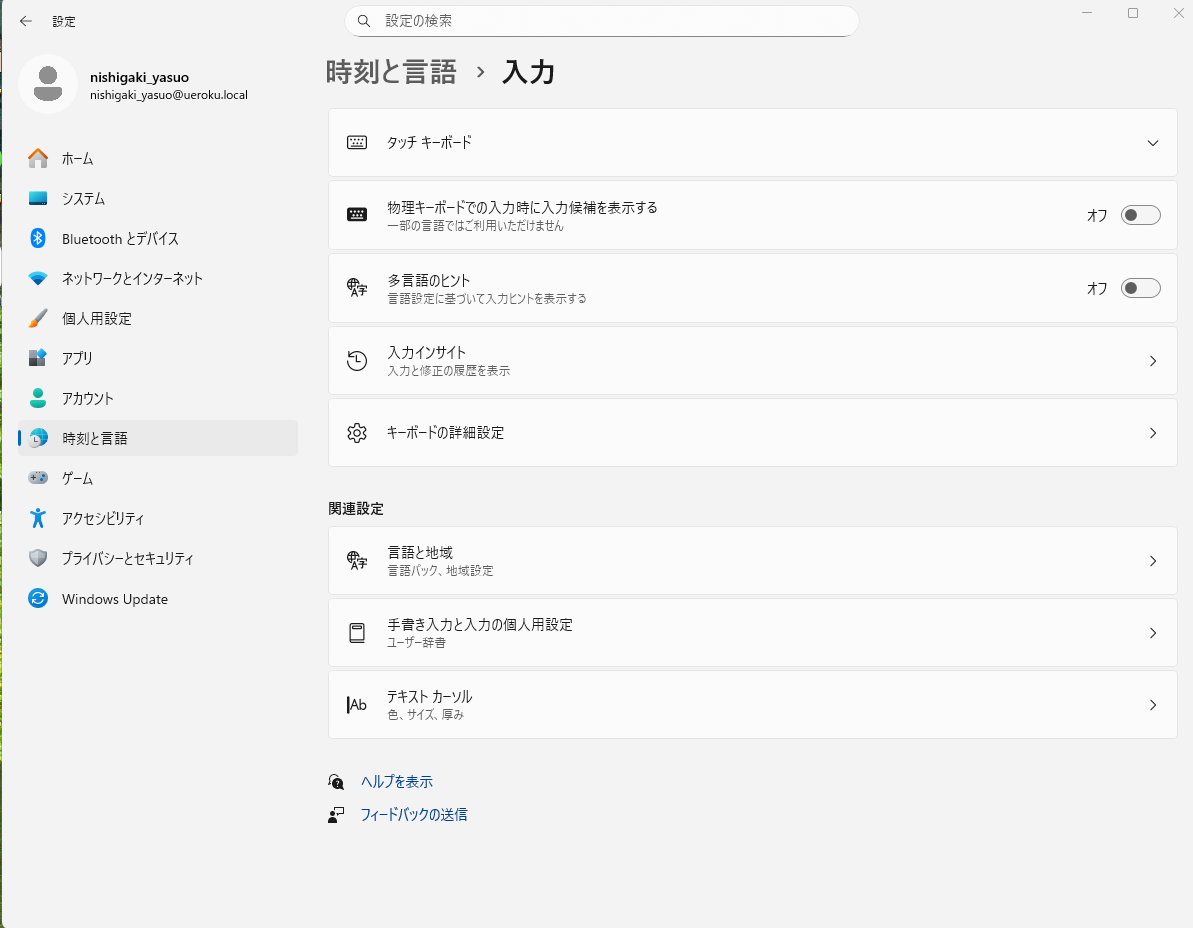
Could you share the regional settings you’re using in ONLYOFFICE Desktop Editors and in your Windows 10 Pro system (e.g., language, region, and keyboard input settings)? This might help us pinpoint what’s going on.
Thank you for your patience.
I’ve reviewed the issue where typing Japanese, converting (e.g., あした → 明日), and then pressing the right arrow key causes the same word to appear in the next cell.
We’ve reproduced this behavior in Microsoft Excel, and it appears to be related to the Japanese IME remaining in the composite input mode (変換候補の選択状態). In this mode, the right arrow key doesn’t move the cursor to the next cell but instead confirms the input and pushes the text to the adjacent cell. This seems to be a characteristic of IME behavior rather than a bug specific to ONLYOFFICE.
To work around this issue, I suggest the following:
Confirm Input with Enter: After converting the text (e.g., あした → 明日), press the Enter key to finalize the input in the current cell. This should allow the arrow keys to function normally and move the cursor between cells.
Adjust IME Settings: You can modify the IME configuration to prevent this behavior:
Open the IME settings (言語バー → 設定).
Navigate to 詳細設定 (Advanced Settings).
Look for the option related to cursor movement with arrow keys (カーソルキー動作).
Set it to 「標準」 or 「入力確定後にカーソル移動」 (Standard or Move Cursor After Input Confirmation).
This should ensure the arrow keys move the cursor between cells rather than switching input variants.
Could you please try these workarounds and let me know if they resolve the issue? Additionally, if you can confirm whether this behavior matches what you observe in Excel, it would help us confirm that this is indeed IME-related.
If you have any questions or additional details, please let me know!
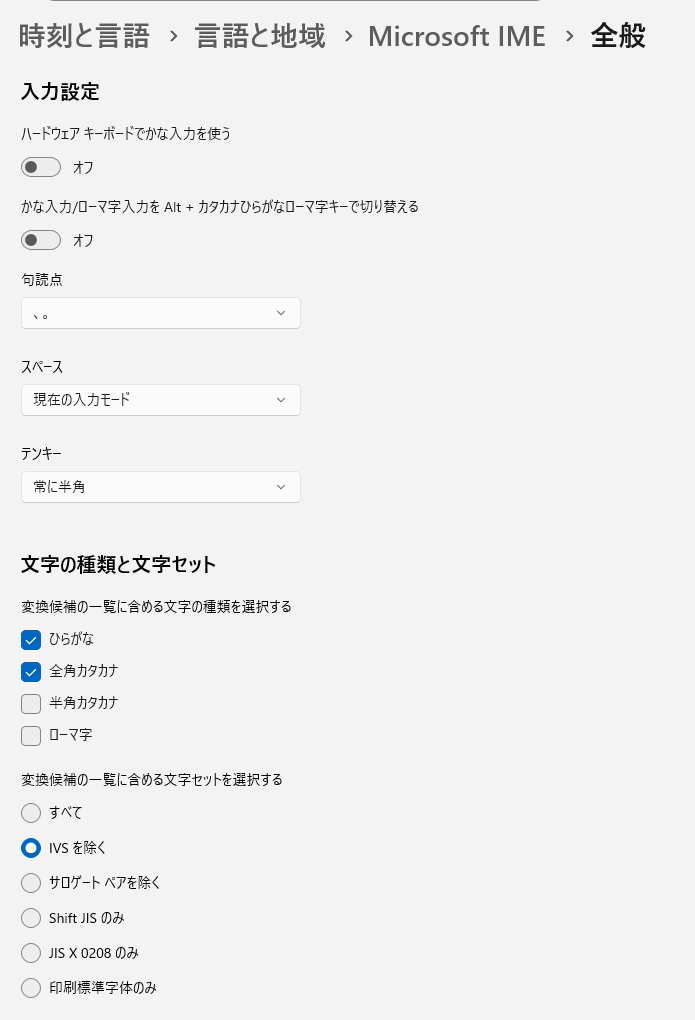
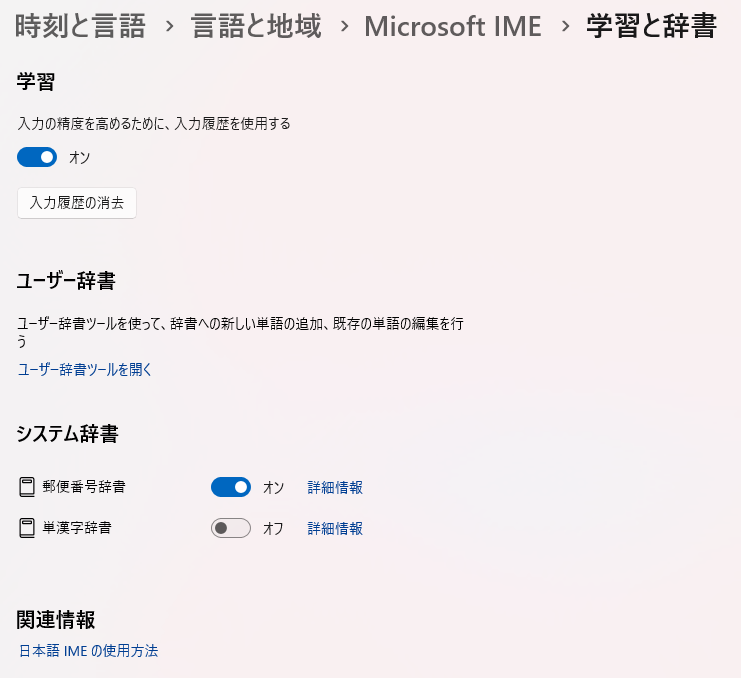
Thanks again for your patience and the detailed screenshots of your IME settings! I don’t speak Japanese, but I’ve scoured the web for some solutions that might help with the issue where Japanese text duplicates in the next cell after conversion (e.g., あした → 明日) and pressing the right arrow in ONLYOFFICE Desktop Editors. Here are a few suggestions to try:
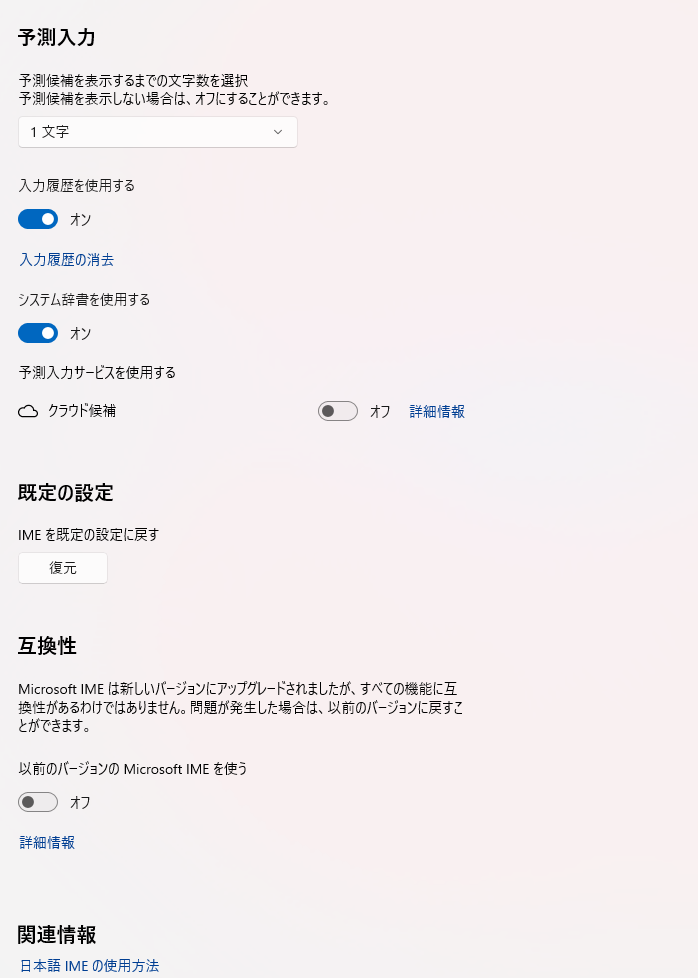
Disable Predictive Input (予測入力)
This can sometimes cause text to repeat in adjacent cells.
Open: Settings → Time & Language → Language & Region → 日本語 → Language Options → Keyboard → Microsoft IME → Keyboard Options.
Under 全般 (General) → 予測入力 (Predictive Input):
Set 「予測候補を表示するまでの文字数を選択する」 to オフ (Off).
Turn off 「入力履歴を使用する」 (Use Input History) to オフ (Off).
Click 「入力履歴の消去」 (Clear Input History).
Keep 「システム辞書を使用する」 (Use System Dictionary) オン (On), but set 「予測入力サービスを使用する(クラウド候補)」 (Use Cloud Suggestions) to オフ (Off).
Restart ONLYOFFICE and test: Type 「あした」 → Convert to 「明日」 → Press Enter → Press Right Arrow. The text shouldn’t duplicate.
Switch to Legacy IME (互換性)
The newer IME can sometimes leave an incomplete composition state. The older version might be more stable for spreadsheets.
In 全般 (General), scroll to 互換性 (Compatibility).
Enable 「以前のバージョンの Microsoft IME を使う」 (Use Previous Version of Microsoft IME) → オン (On).
Restart ONLYOFFICE and test: 「あした」 → 「明日」 → Enter → Right Arrow.
Add a Quick Confirm Key for IME
You can set a key to confirm text input before moving to avoid arrow key issues.
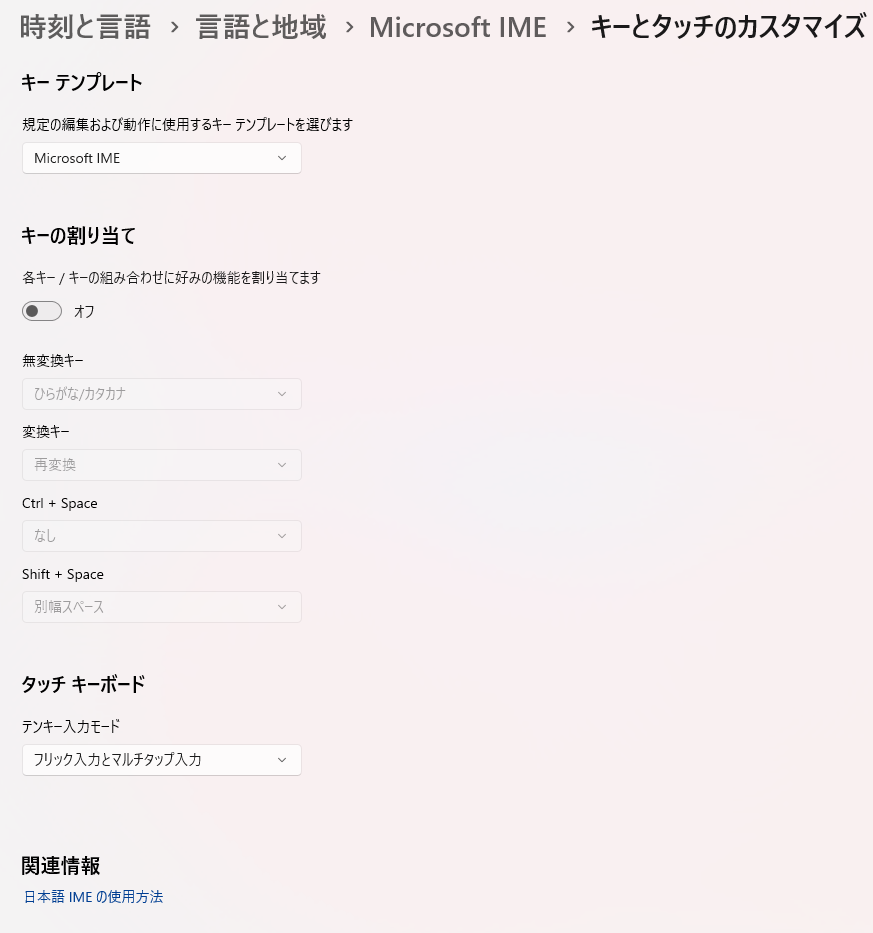
Go to キーとタッチのカスタマイズ (Key & Touch Customization).
Enable 「キーの割り当て」 (Key Assignment) → オン (On).
Assign a key (e.g., Ctrl + Space) to 「確定」 or 「入力確定」 (Confirm Input), if available. If not, leave as is.
Test: Type 「あした」 → Convert to 「明日」 → Press your confirm key (e.g., Ctrl + Space) → Right Arrow.
Reset IME to Factory Settings
If the issue persists:
In 全般 (General) → 既定の設定 (Default Settings), click 「復元」 (Restore).
Test: 「あした」 → Space to select 「明日」 → Enter → Right Arrow.
Could you try these steps and let me know if any fix the duplication? Also, can you confirm if this happens in Excel too, to verify it’s IME-related? If none work, I’ll dig deeper with the team.
Only in step 2(Legacy IME), typing the right arrow no longer moves to the next cell.
Thank you. However, it is difficult to decide to change the settings for all PCs at the moment.


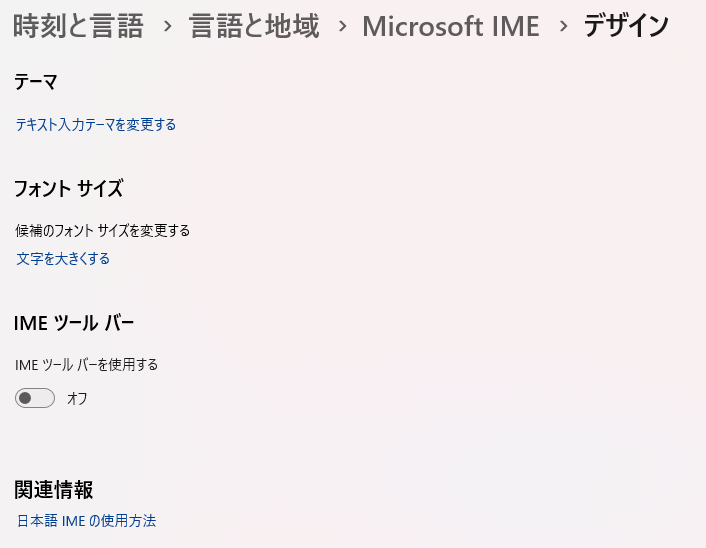
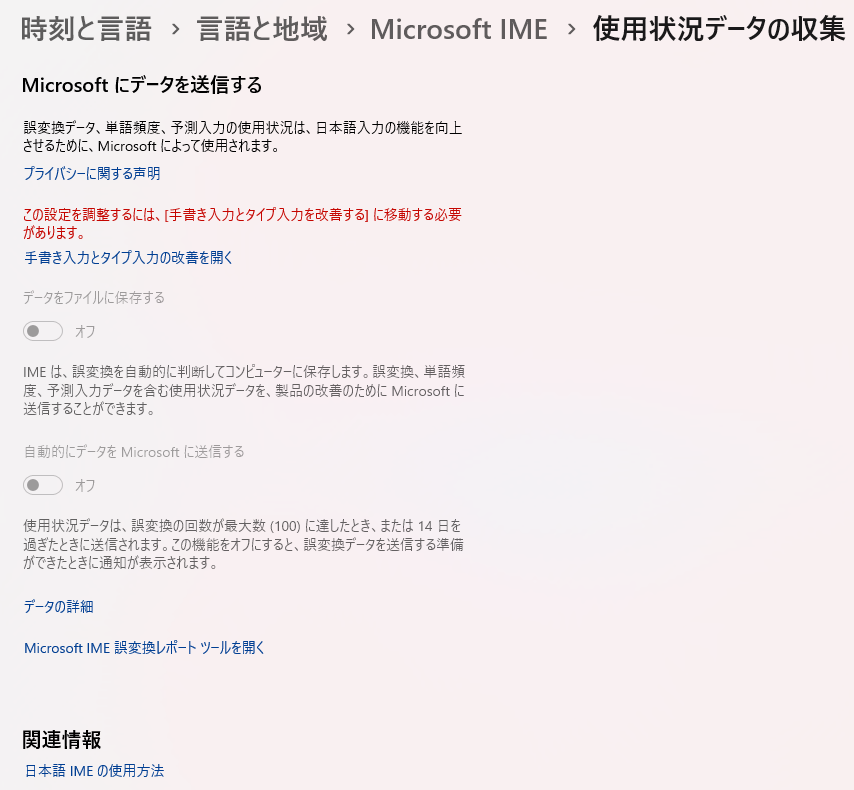

 I don’t speak Japanese, but I’ve scoured the web for some solutions that might help with the issue where Japanese text duplicates in the next cell after conversion (e.g., あした → 明日) and pressing the right arrow in ONLYOFFICE Desktop Editors. Here are a few suggestions to try: