ONLYOFFICE Mobile: Documents / spreadsheets
Do you want to: Report a bug
Device: Pixel 6
OS version: Android v16
App version: 9.1.0
Mode: On Device
Hi, I have noticed two rather significant bugs on the mobile application: filters and comments simply do not appear as you can find them on desktop.
I have created a spreadsheet showcasing the problem with screenshots below to show what I mean. On the desktop, the file looks like this:
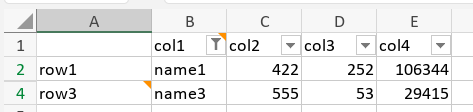
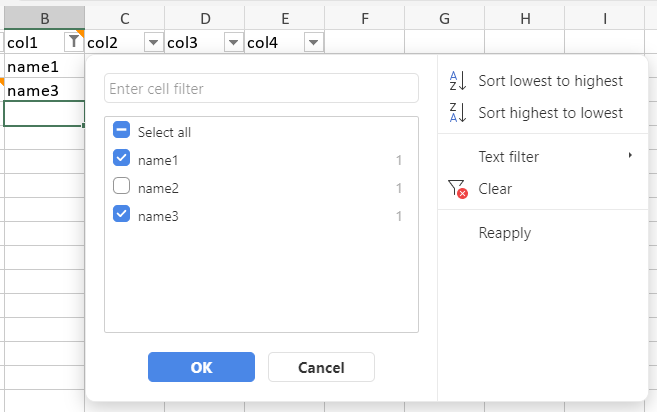
For reference, I had enabled the filter over columns B to E, and then applied the filter for column B by deselecting “name2” from the list (which causes row 3 to not be shown), as shown here:
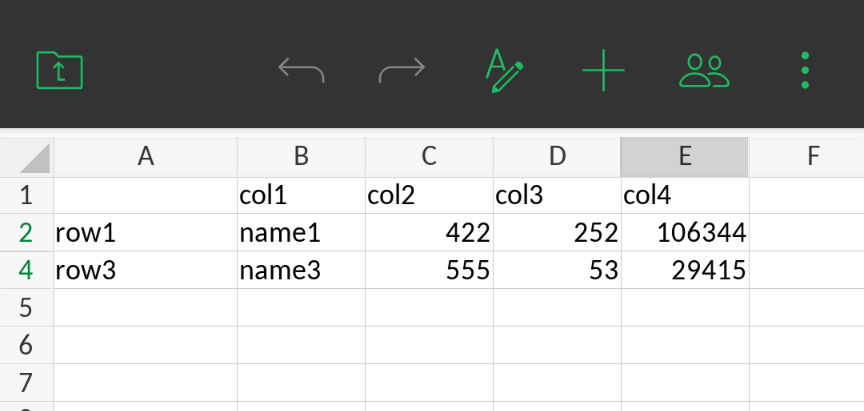
Now opening the file on mobile, this same file looks as follows:
Comments bug
On the desktop, as one can see in the first screenshot above, if a cell has a comment it is denoted by a little orange triangle in the upper right corner (in my file, cells A4 and B1 have comments). Also, clicking on the cell on desktop will show the comment, and allow one to edit it.
On mobile, these comment markers are missing completely. Tapping and holding a cell also doesn’t bring up any mention of a comment, nor any way to edit the comment on that cell:
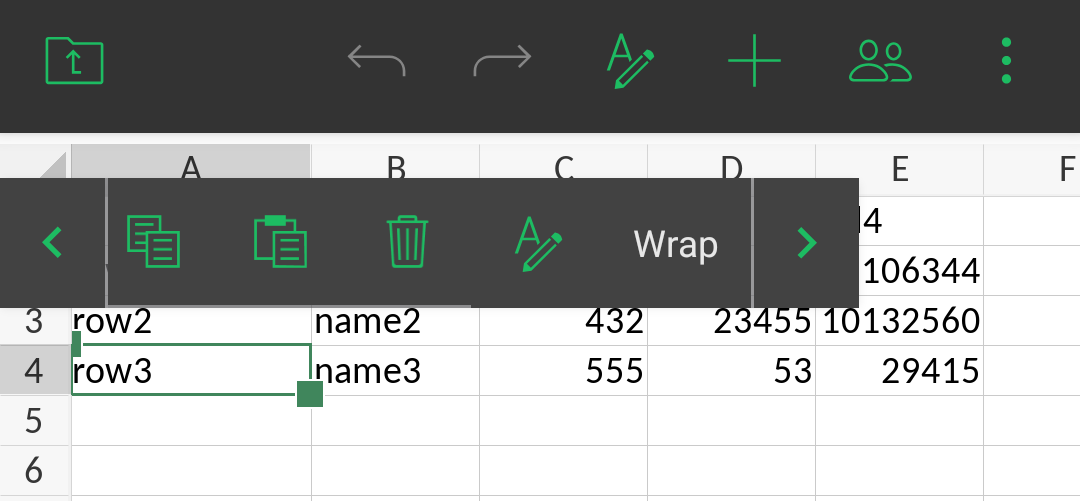
Furthermore, selecting cell with a comment (e.g. A4 above), tapping “+” and then tapping “…”, shows “Add comment” as an option, but nothing is shown about the existing comment.
The only thing one can do on mobile is to see a list of all comments (tap the “double person” icon which brings up a “Collaboration” menu, and then tap “Comments”):
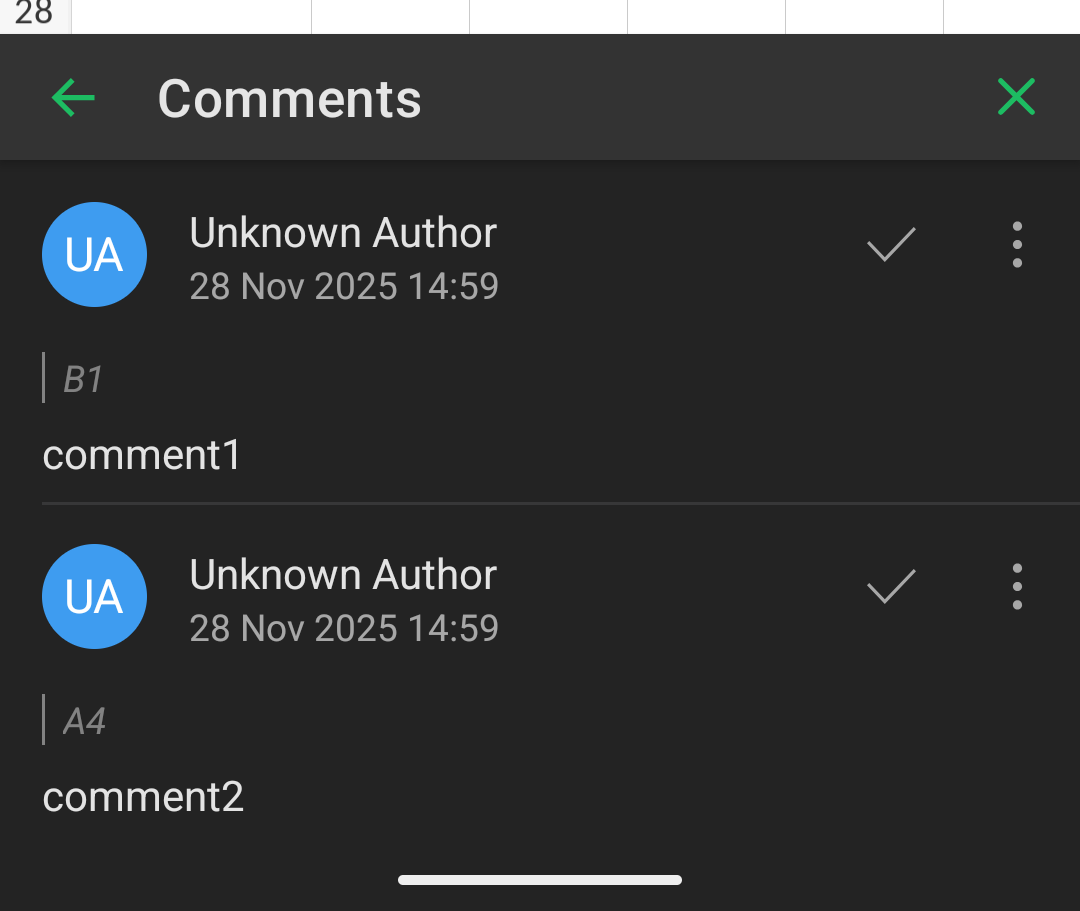
This list of all comments in the document isn’t really helpful in understanding where comments are. Tapping on a specific comment in the full comment list also doesn’t highlight the cell or provide any other info as to where that cell is visually or what the contents of that cell are, so it is of almost no utility. And if the spreadsheet contains many comments, it is even less helpful as it becomes impossible to track.
Filters Options bug: the filter buttons don’t appear at all, and the Filter Options menu is virtually impossible to summon
On the desktop, when a spreadsheet has the filter on, each cell in the filter row has a little “drop-down arrow” icon or a “funnel” icon (see the very first screenshot above). On mobile, no drop-down arrows and no funnels can be seen anywhere (I have also pinch-and-zoomed to the max possible to see if they would appear, to no effect):
I note that there is a specific mobile help center page on “Sort and filter data”, and that help article makes reference to “Tap the drop-down arrow”, and also to “The Filter button will appear in the first cell of the column. It means that the filter is applied”. But again, I cannot actually see any such buttons anywhere (maybe this works on iOS, but at least on my Android I cannot).
Tapping and holding a cell that has a filter also does not make any reference to the existing filter.
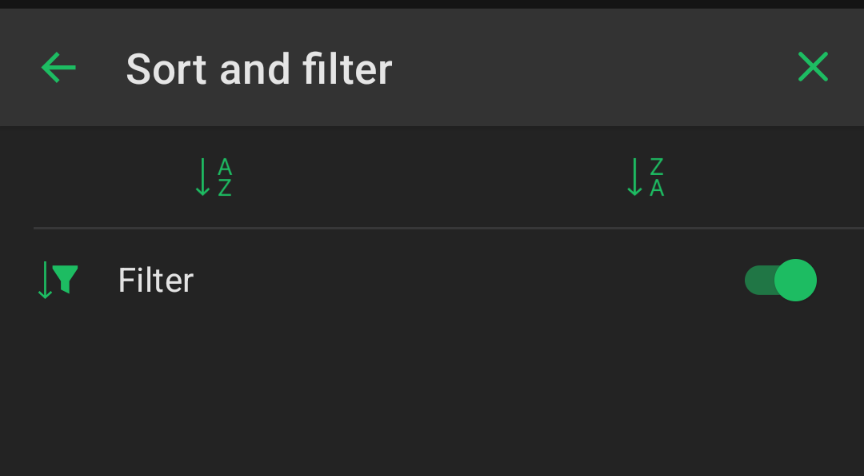
Furthermore, if you select the cell with a filter applied (e.g. my B1 above that has filtered out “name2”), and tap the “+” button, tap “…”, then tap “Sort and filter”, the “Filter options” are also not shown, but you just get the overall Sort & Filter menu:
But, I note that after tapping literally dozens of times, and all over the place , on a cell that you know has a filter from desktop (e.g. B1), I was able to finally make the “Filter options” appear:
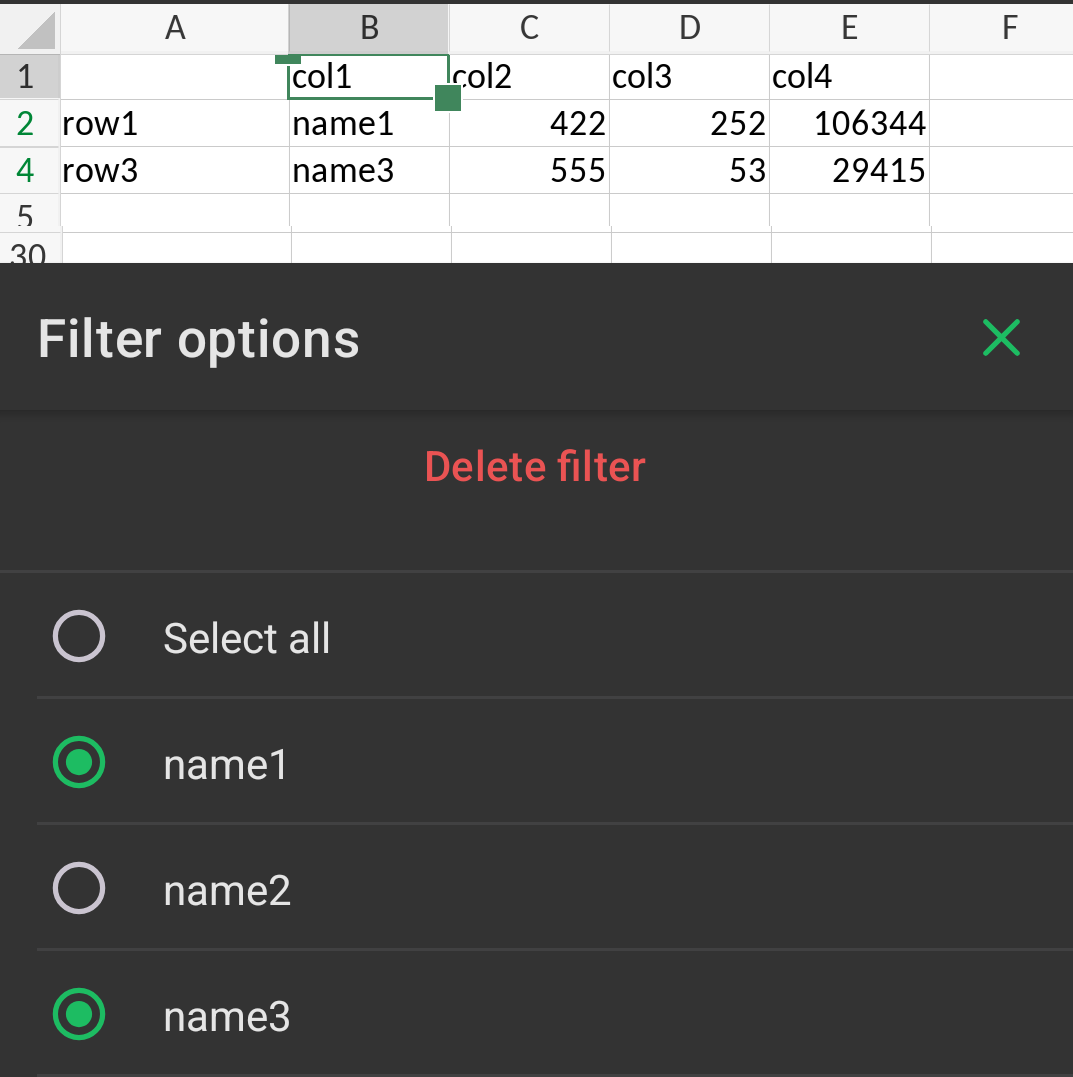
Unfortunately, the ability to successfully get the filter menu to appear feels completely random, and I can’t seem to consistently get it to appear, maybe needing 20 taps to get it to come up. Furthermore, it seems that after you’ve managed to actually bring up the “Filter options” a couple of times, thereafter you can’t seem to ever get it back again – I have to close the file and try again fresh.
Also to note, a further bug on the Filter Options pop-up (when you can somehow get it to to appear) is that tapping the “X” button at the top-right does not work/do anything.
Filters creation bug 1: text added to cells that had no text
When a “global” filter is added to the file, the mobile app adds text to cells that never had it.
E.g. I am taking the same reference file above, but disabling the filter from the file. And note that cell A1 is completely empty.
With the file now opened in mobile, tap “+”, tap “…”, tap “Sort and filter”, and then tap the “Filter” toggle to on. This will add the filter to the top row (even though you can’t see any filter buttons). But in addition, it will add the text “Column1” to A1, as shown here:
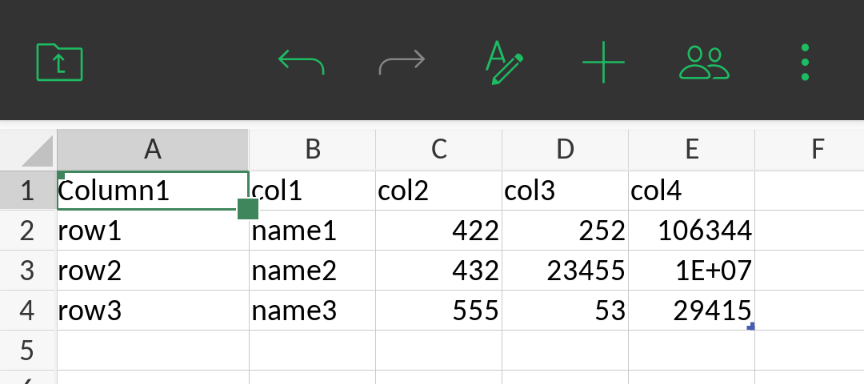
This does not happen when you enable the filter on desktop.
Filters creation bug 2: when you apply a filter to a set of cells, mobile adds a row and shifts rows
If you try to set the filter exactly as you do in desktop, you get a strange result in mobile.
For example, taking the reference file above again, the way I had applied the filter was that I selected B1 to E4, as follows:
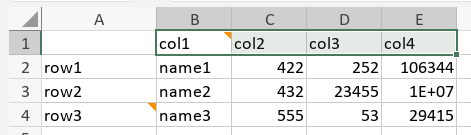
Then pressing the Filter button (alternatively, Ctrl+Shift+L), results in the file as follows:
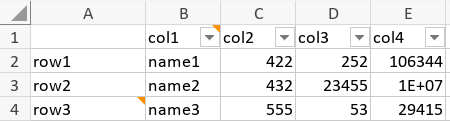
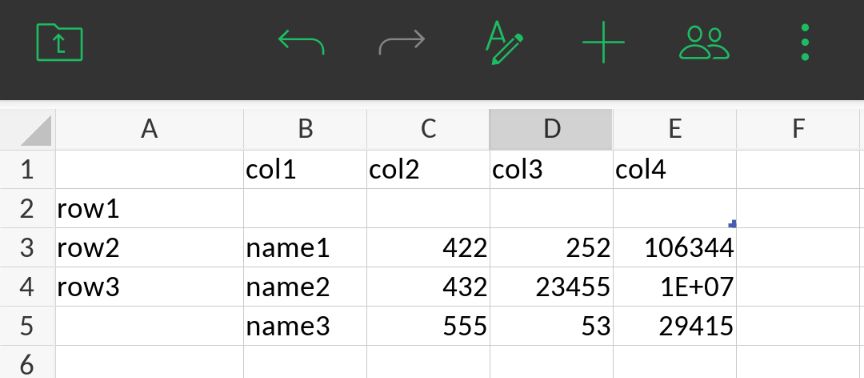
Now follow the same steps in mobile: 1. select cells B1 to E4; 2. tap “+”, tap “…”, tap “Sort and filter”, then toggle “Filter” to on.
The file will have an empty row added:
I hope I have described the bugs above with sufficient detail. If more info is required, happy to provide it.
Also, here is the spreadsheet that I used for the above exampes
filter_comment.xlsx (11.9 KB)