[bug] IRR and XNPV fail when using ranges specifying the sheet or using named ranges

OS version: Windows 11
App version: 9.1.0
Downloaded from: ONLYOFFICE website

The financial functions IRR and XNPV have a bug in that they will not accept ranges that specify the sheet, nor if you use a named range. This will result in either a #NUM! or #VALUE! error, with the details in the two examples below.

IRR example

e.g. assume there is a range of monetary values in the cells from B2 to E2 in sheet “sheet2”, and that this range is also named NamedMoneyRange. For my example below, I use -5000, 2000, 2000, 2000.

If you try IRR(B2:E2), the program will output the IRR, e.g. “9.70%”.

If you try IRR(Sheet1!B2:E2) or IRR(NamedMoneyRange), you will get a #NUM! error.

XNPV example

e.g. assume again there is a range of monetary values in the cells from B2 to E2 in sheet “Sheet1”, and that this range is named NamedMoneyRange. Assume also that there are a series of dates in the cells from B1 to E1 in “Sheet1” and that this range is named “NamedDateRange”. For my example below, I again use monetary values of -5000, 2000, 2000, 2000, and I use dates of 30/11/2025, 30/11/2026, 30/11/2027, 31/12/2028.

If you try XNPV(5%,B2:E2,B1:E1), the program will output the NPV, e.g. “$439.12”.

You will get a #NUM! error though if you do one of the following:
XNPV(5%,Sheet1!B2:E2,B1:E1) or XNPV(5%,B2:E2,Sheet1!B1:E1) or XNPV(5%,B2:E2,NamedDateRange) or XNPV(5%,NamedMoneyRange,B1:E1)

You will get a #VALUE! error if you do one of the following:
XNPV(5%,Sheet1!B2:E2,Sheet1!B1:E1)
XNPV(5%,NamedMoneyRange,NamedDateRange)

I hope that this succinctly describes the bug with sufficient detail.

Also note that the XIRR and NPV functions are NOT affected by this bug. Both those functions behave as expected when using either named ranges or specifying the sheet in the formula.
Hello @OnlyTraveler
Please attach a test file where the issue can be reproduced, we’ll check it out.

@Alexandre thank you for responding so quickly!

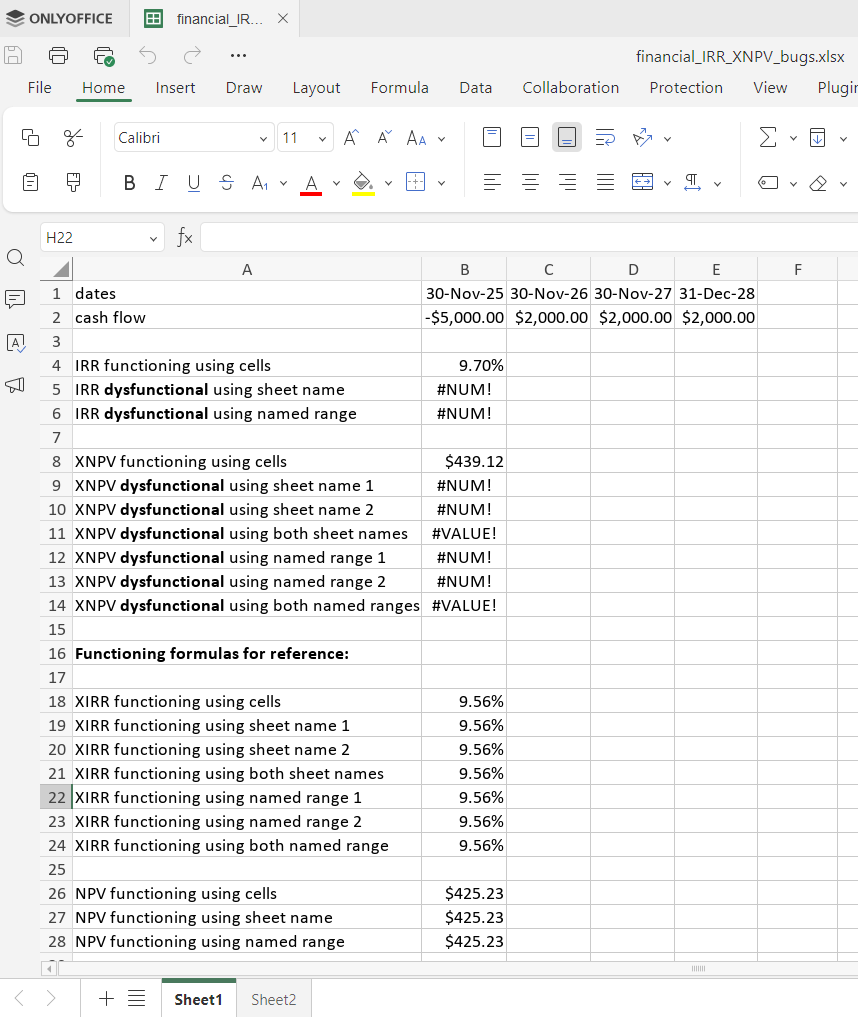
As you’ve advised, I’m attaching a file that includes what I discussed:
financial_IRR_XNPV_bugs.xlsx (10.6 KB)

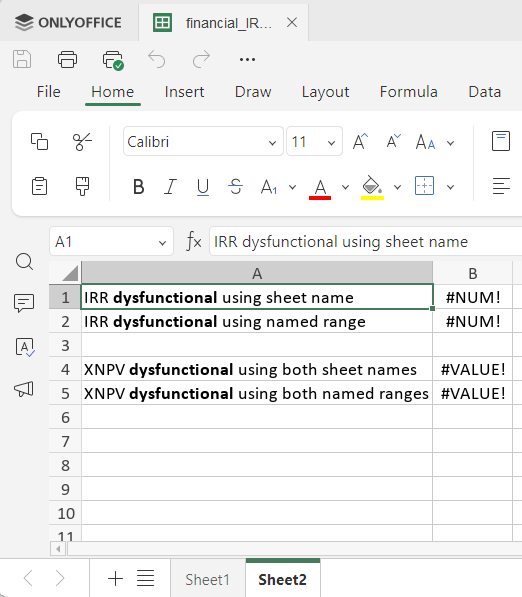
Also, as I mentioned in the original post, I’m just including examples of XIRR and NPV, that work correctly for the sake of reference. And, just also as an example, I created a second sheet to show how the error shows up across sheets.

And for reference, a couple of screenshots of how it looks on my screen (sheet1 and sheet2).


Please do let me know if this is isn’t clear. Thanks!

Thank you! We’re checking the situation.

Dear @OnlyTraveler
We have found bugs in the provided scenario, we have started working on them. Thank you for the valuable data!

1 Like

Hi @Alexandre , I have tested the above test xlsx file in the latest v9.2.0 release.

Upon initial opening, the file looks exactly the same as my screenshots showed above.

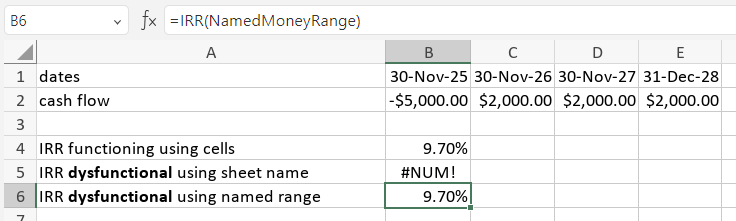
But for the IRR dysfunctional cells (B5 and B6), if I edit each cell without making any changes (press F2 then just ENTER), the IRR does appear correctly afterwards without the #NUM! error! E.g. if I do this on B6, it looks like:

If I do not save the file, close it, and then re-open it, the #NUM! error will show up again. But if I do the F2+ENTER on the IRR fields, save the file, then re-open it, the IRR will show up fine.

So that’s great!

I then also tested the above on the dysfunctional XPNV cells (B9 to B14), but unfortunately the bug persists for those formulas.

Hello @OnlyTraveler
My apologies, I decided not disturb you until we fixed all mentioned reported issues. Indeed, we already have fixed IRR issue (internal bug 78419) and the fix is included to the recent v.9.2.
The second issue (XNPV, internal bug 78421) is still in progress. I will update this thread once we have something to share.

1 Like