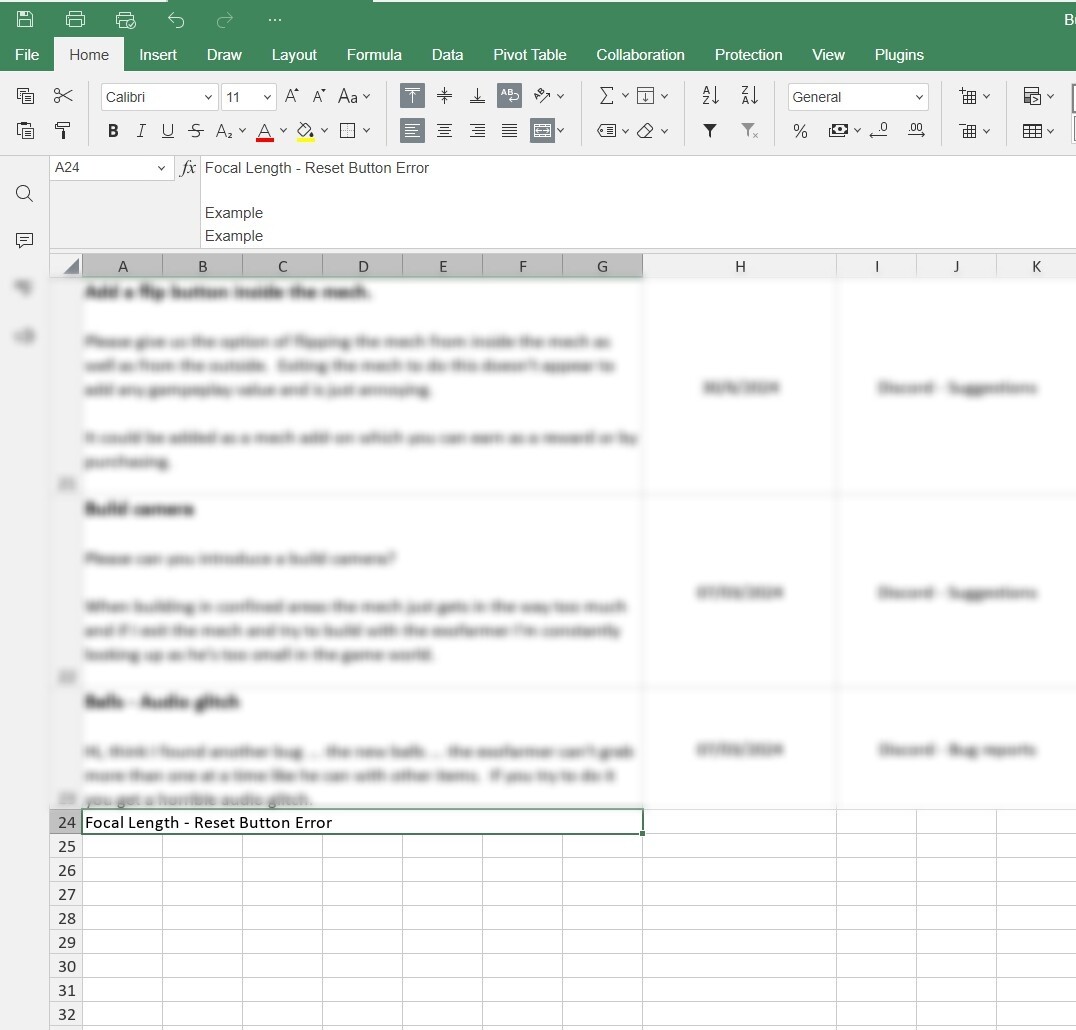
Usually such behavior appears when height of the cell was anyhow changed manually.
To reset it back to previous state you can simply double-click the bottom border of the row, here is demo for better visual understanding on how to:
Unfortunately, double clicking on the bottom border as you’ve shown doesn’t work for me. I guess I can manually do it so it’s a solution of a sort but it’s still not how I was doing it 2 weeks ago. It was just auto fitting the contents.
I’ve tried another a brand new workbook and the same issue exists. It’s quite frustrating.
Sorry, I didn’t notice that merged cells were used. Yes, in case with merged cells it is expected behavior that AutoFit cannot be applied to cells merged with cells from near columns.
This is default behavior in many spreadsheet processors. I believe in previous version was a bug that is fixed now.
So, it was working previously due to a bug? How strange as it seems like an excellent feature and was really helpful. I guess in the interim my app autoupdated which would explain why it has now stopped working.
Problem:
You have your row with a set of cells that are merged.
You want the row to adjust it’s height to the contents of the merged cells, but it does not work on some calc programs like OnlyOffice.
Workaround:
Just use a cell much further to the right, where it doesn’t bother you and do:
=“The cell number of the merged cells”
Then give it the same width as the merged cells and the row will adjust to the contents of the merged cells now! Because it actually adjusts to the contents of the other cell, but since that cell has the same contents as the merged cells, it works flawlessly!
Again:
Merge your cells. The number of those cells may be “B24”
Go far to the right and give an single cell this formula: =B24
Then set it’s width roughly the same as the merged cells take up.
Now set the auto fitting of the row height and it should work!