An update to the ONLYOFFICE AI plugin brings new functionality and more intelligent interaction in editors. With the introduction of a smart AI agent currently available in beta version, expanded provider support, and other updates, it transforms the plugin into a powerful document assistant.

Key AI agent features and benefits (BETA)
The update introduces an AI agent — a smart contextual assistant accessible inside ONLYOFFICE editors via a floating panel.
Natural language command instead of clicking through menus. The AI agent allows users to communicate in natural language to perform common tasks without searching menus.
Collection of predefined functions tailored to common tasks for each editor. The agent’s capabilities are currently limited to the following actions, but we are continuously working to expand its functionality.
Document Editor
- Text streaming. Generate text seamlessly (e.g., “Write the history of the creation of ONLYOFFICE”).
- Contextual explanations. Provide explanations in comments. If text is selected, the explanation applies to the selection; otherwise, it focuses on the current word.
- Text rewriting. Rewrite sentences or paragraphs with options to track changes (e.g., “Rewrite the current sentence more emotionally and show differences” or “Make it funnier”).
- Paragraph style adjustment. Modify paragraph styles effortlessly (e.g., “Change the first paragraph to Heading 1”).
- Text formatting. Update text settings with ease (e.g., “Make the text bold”).
Spreadsheet Editor
- Pivot Tables. Aggregate and analyze data effortlessly (e.g., “Summarize data based on bronze medals”).
- Filtering. Apply filters to refine data views (e.g., “Show the top 10 in the ‘gold’ column” or “Filter entries with more than 5 in the ‘silver’ column”).
- Sorting. Organize data with ease (e.g., “Sort by the ‘silver’ column”).
- Charts and diagrams. Create visual representations of data by selection or range (e.g., “Generate a bar chart” or “Create a chart for the range C2:F5”).
Presentation Editor
- Adding new slides. Insert a fresh slide into your presentation.
- Inserting shapes. Add shapes with optional text (e.g., “Insert a star shape with the text ONLYOFFICE”).
- Setting slide background. Customize slide backgrounds (e.g., “Apply a blue background to slide 1”).
- Creating external data diagrams. Visualize data with charts (e.g., “Generate a pie chart showing the current crypto market share: Bitcoin, Ethereum, Others”).
- Duplicating slides. Easily replicate slides (e.g., “Duplicate slide 2”).
- Deleting slides. Remove unwanted slides (e.g., “Delete slide 3”).
- Adding images. Generate and insert images based on descriptions (e.g., “Create an image of a golden Bitcoin coin with a digital background”).
Conversation history support. The agent keeps your conversation history, allowing you to refine results step by step or continue complex requests.
Scenarios: what’s it for?
Generate and rewrite the text. Ask the AI agent to create content from scratch or improve existing text. You can generate summaries, expand ideas, rephrase sentences, or adapt tone and style — all by describing what you need in natural language.
Format your documents smarter. Apply formatting without searching through menus with an AI agent. You do not need to search for where a certain button or function is located. Just type in your request, and the editor will instantly update the content.
How to install the AI agent
The AI agent is part of the AI plugin. To install, follow these steps:
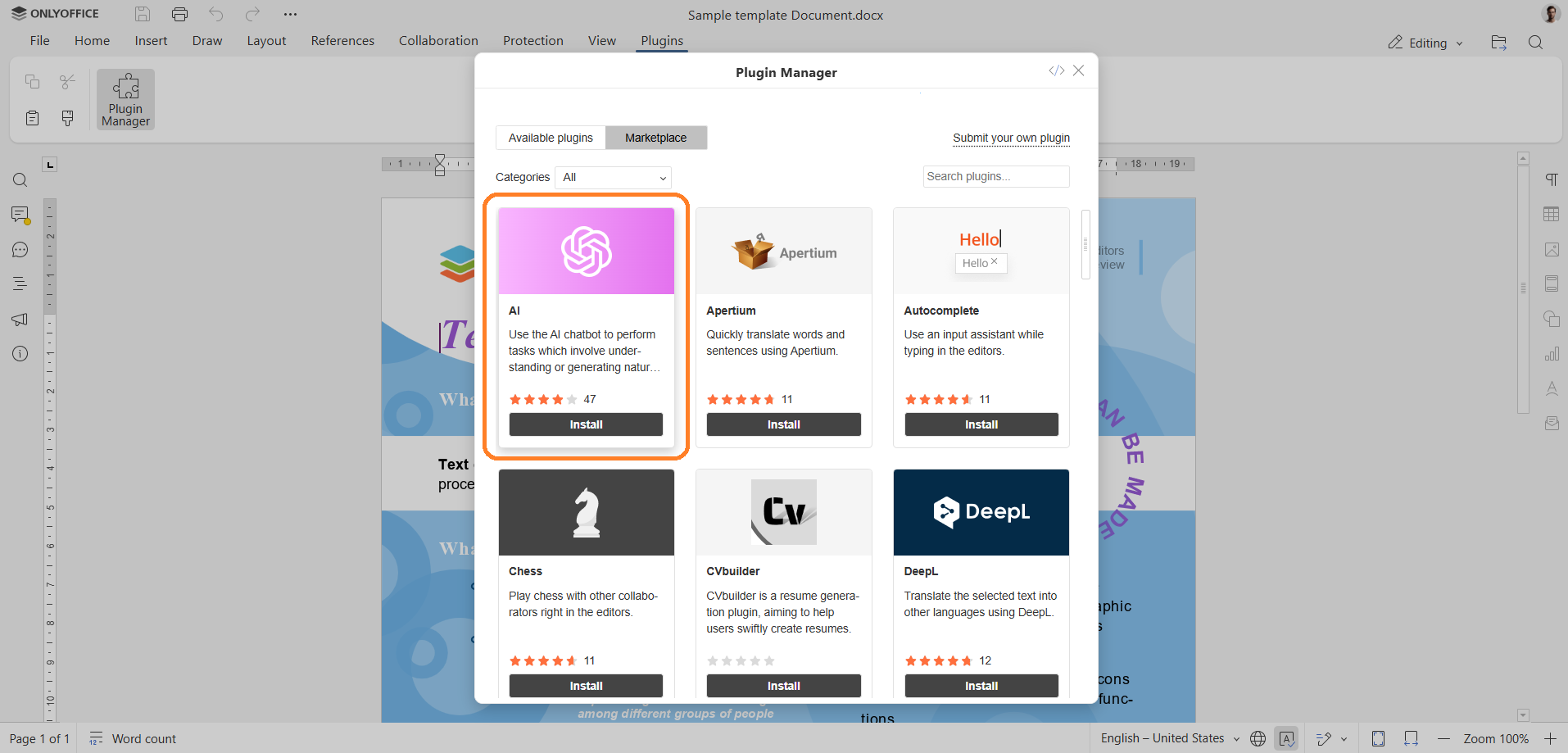
1. Go to the Plugins tab and open Plugin Manager. Find the AI plugin and click Install or Update if the plugin is already installed.
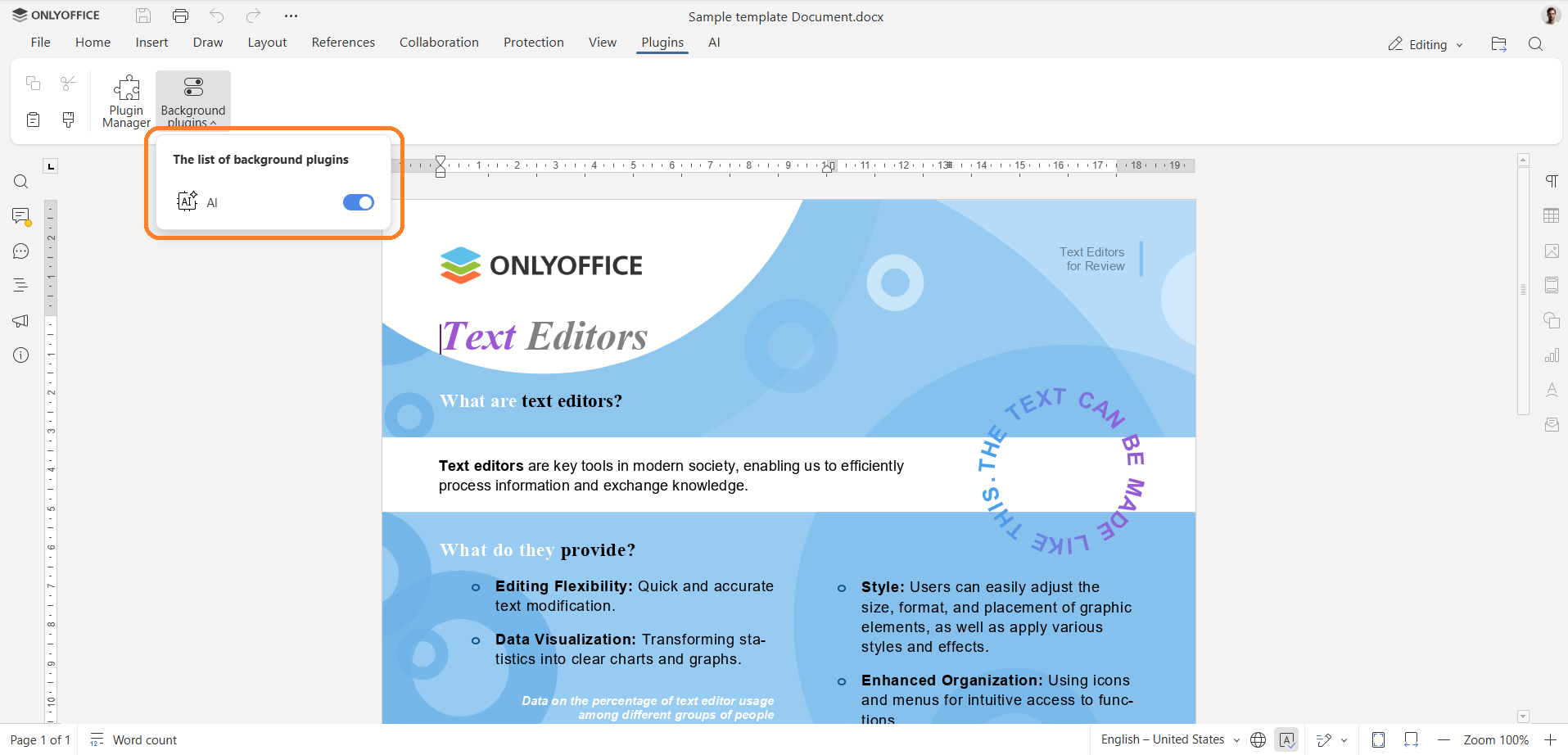
2. Activate the plugin via the Plugins tab -> Background plugins.
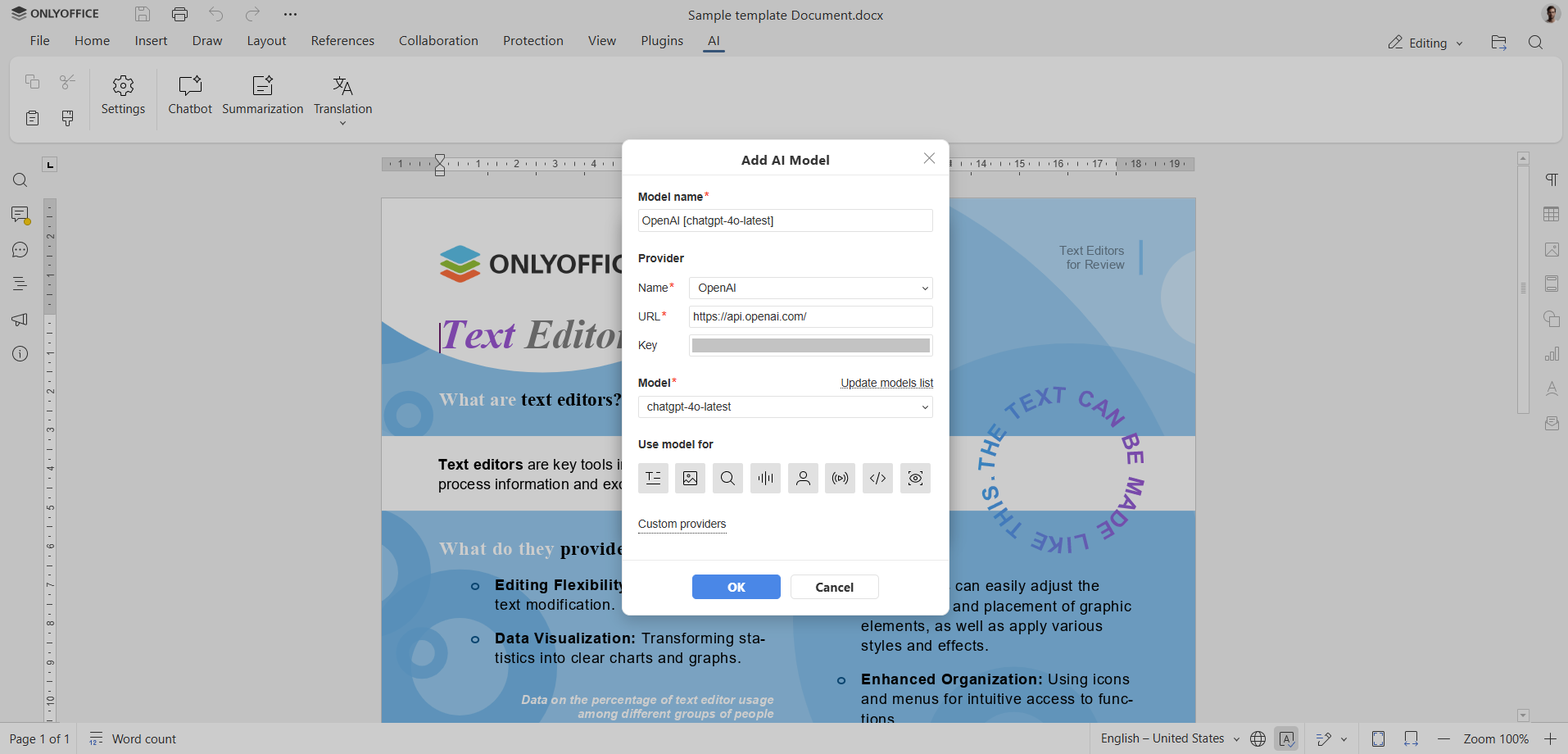
3. Switch to the AI tab -> Settings. Under Edit AI models, click the + icon.
Add your preferred AI model. In the Provider name drop-down menu, choose the provider. Enter the API key* and click Update models list.
A list of available models will appear. Select the model that best fits your needs. Click OK.
*API keys need to be obtained directly from the website of your chosen AI provider (such keys are NOT issued by ONLYOFFICE). Please note that API keys may not be free, and providers might charge a fee. It’s important to review the pricing terms and conditions before entering the key into the plugin.
*For LM Studio and Ollama, an API key is not required, but specifying the base URL is essential.
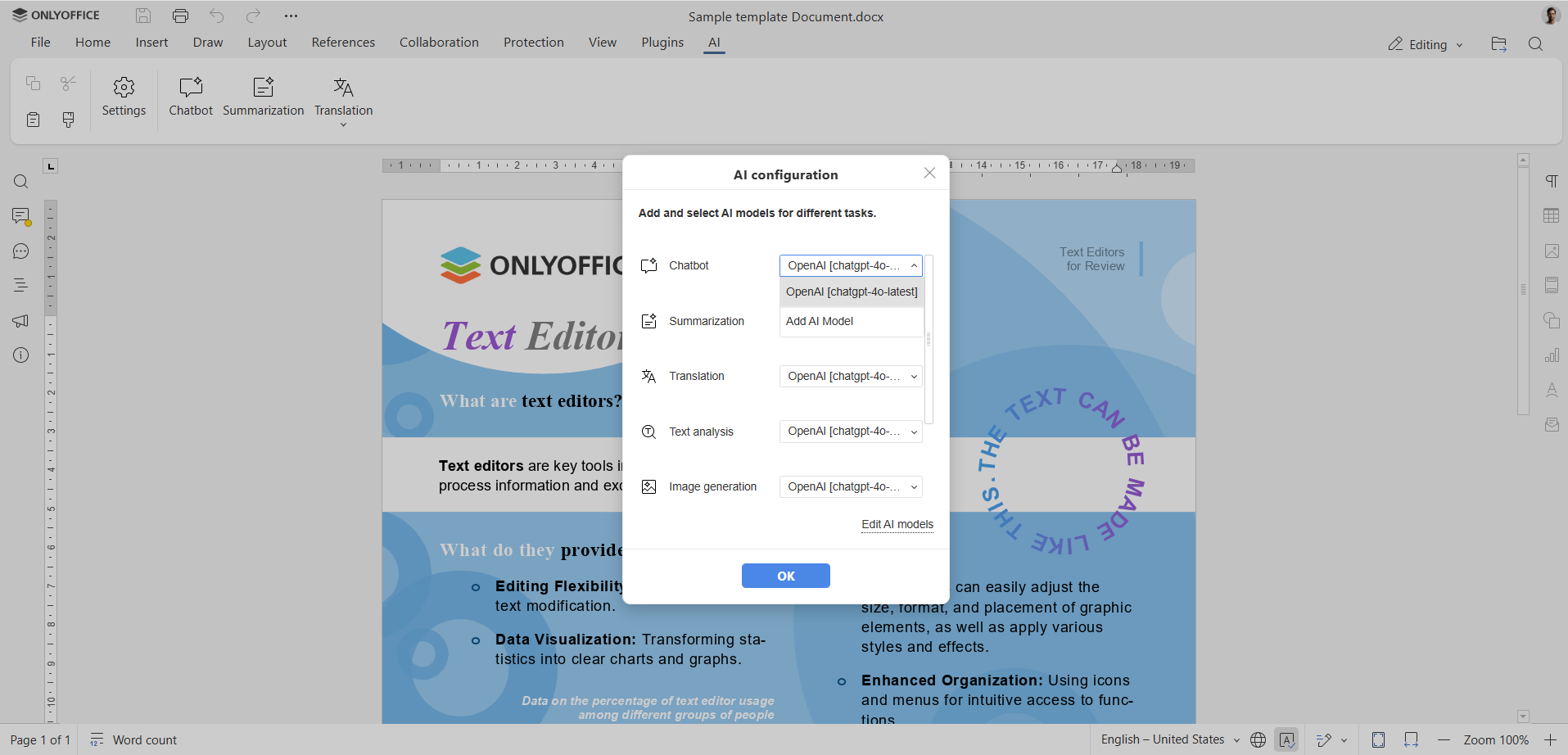
4. Go back to the Settings. Set the model for the Chatbot.
That’s it. The AI agent is now installed and ready to start.
How to use the AI agent
To start, call the agent inside any editor with Ctrl + /. Simply type your request in the AI agent line and get an instant response.
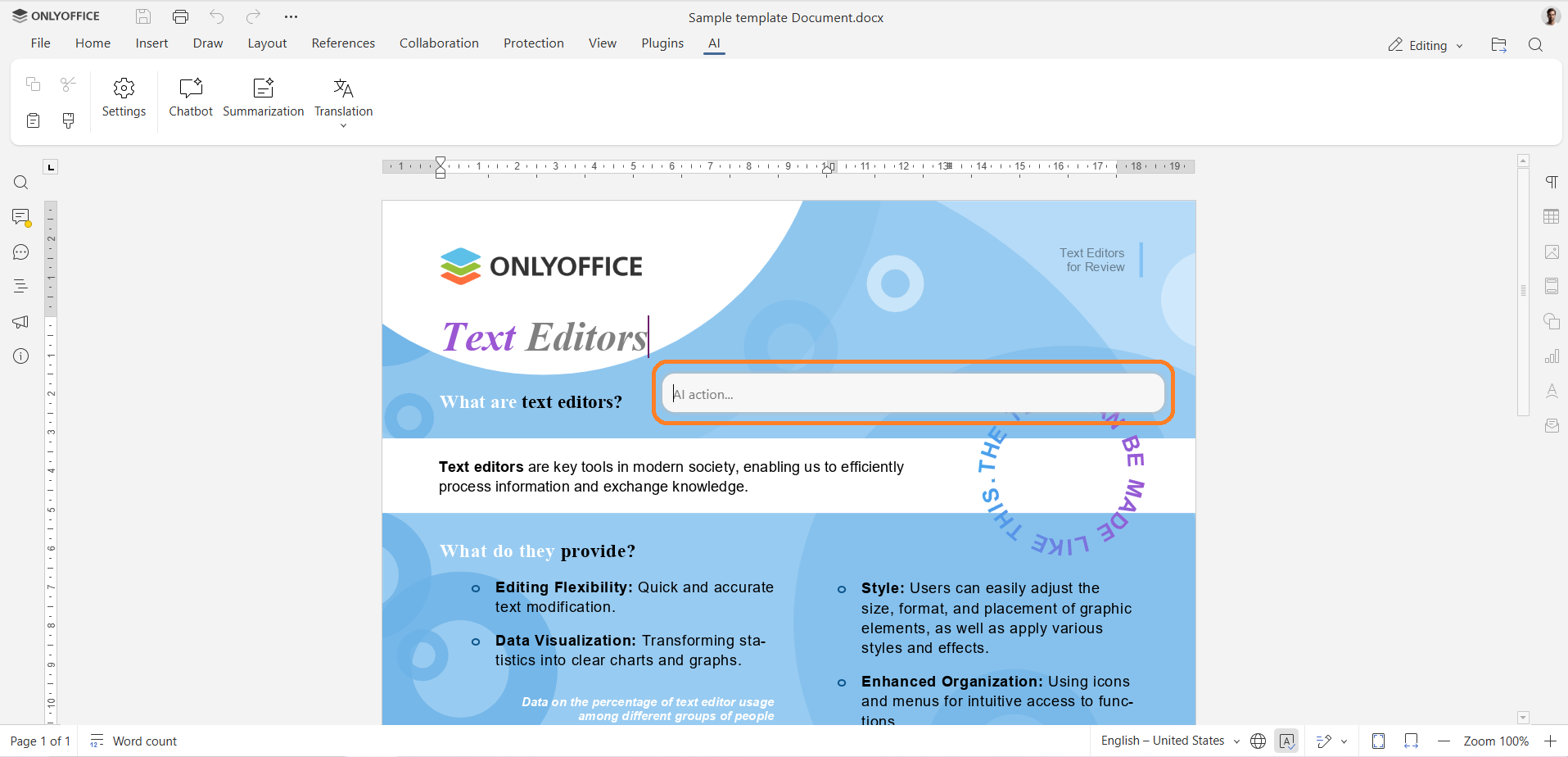
The editor supports request history, so you can continue the conversation, giving instructions step by step.
Want a fresh start? Use Ctrl + Alt + / to reset the history.
To disable the agent, use ESC.
Other updates for AI plugin
New AI providers
In addition to previously supported options, the plugin now works with the following AI providers:
- LM Studio – for local LLMs
- Zhipu AI
New streaming protocol and better compatibility
To enhance compatibility with providers like Ollama or LM Studio in ONLYOFFICE Desktop Editors, the plugin now uses the onlyoffice:// protocol scheme instead of file://.
This change makes the AI plugin more secure and consistent across local setups. We recommend updating your setup instructions to include onlyoffice://.
Try new AI features
Try the new AI agent and other updates of our AI plugin in ONLYOFFICE Docs Enterprise:
Have an idea for a function or want to tell us what to improve? Visit our feedback platform and leave your suggestions today!
*Please note that the ONLYOFFICE team is not responsible for the accuracy or reliability of the information and content provided by third-party AI models and assistants.
Frequently asked questions (FAQ)
Here are the answers to the most popular questions about the AI agent for ONLYOFFICE editors.
Where can I use the AI agent?
The AI agent is available in the following solutions:
- ONLYOFFICE Docs
- ONLYOFFICE DocSpace
- ONLYOFFICE Desktop Editors
It works with version 9.0.4 and newer of the ONLYOFFICE editors and needs version 2.4 and newer of the AI plugin.
Is the AI agent free to use?
Yes, the AI agent is included in the AI plugin, which is absolutely free. You can install and use it without additional cost. However, some AI providers may require a valid API key and a paid plan, depending on usage.
What types of tasks can the AI agent perform?
The AI agent can:
- Generate and rewrite text
- Summarize and expand ideas
- Change tone and style
- Execute predefined function without searching for the corresponding button
- Format documents via natural language request
- And more (refer to the list above)
What AI providers are supported?
The plugin supports various providers, including OpenAI, Together AI, Mistral, Anthropic, Grok, Google Gemini, DeepSeek, Ollama, Stability AI, and custom providers via API.
Can I use AI models locally without Internet access?
Yes. With providers like LM Studio and Ollama, you can run models locally on your machine, ensuring full control over data and offline operation.
Is the AI agent in beta?
The AI agent is currently in beta, which means some features may change, and performance may vary. We continue to refine its behavior, expand functionality, and improve compatibility with various AI providers. This phase allows us to gather user feedback, test performance across different scenarios, and ensure a more stable and polished experience in the next release. Your input during this stage is especially valuable and helps us shape the future of the tool.
Share your thoughts and suggestions on our forum or submit feature requests on our feedback platform.
Can I add custom functions to the AI agent?
Yes, this option is available. It’s possible to define your own functions to tailor the AI agent to specific tasks. The documentation will be available shortly.
Useful links
Originally published at: Meet the new AI agent for ONLYOFFICE: smart interaction with editors, new AI providers, and much more | ONLYOFFICE Blog