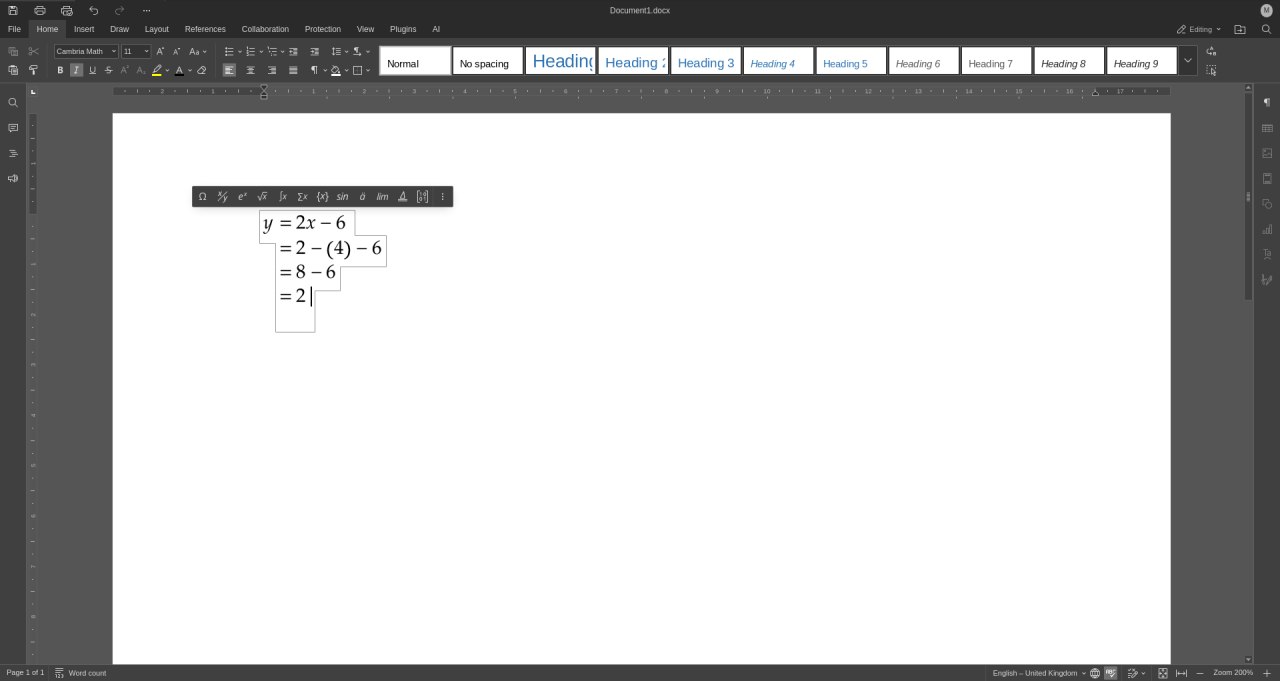
I am a science and mathematics teacher moving to Linux and open source software and I am trying to figure out if I can use OnlyOffice to produce notes and presentations for my lessons. I regularly (multiple times per worksheet/set of notes/presentation) need to include multi-line equations that show students the process of solving or substituting values into formulas or equations. See below for example.
I cannot seem to figure out how to easily align each of the lines at the equal sign (or other relational operator, such as <). I have managed to do this by inserting a separate equation for each line and then adding spaces before and after, manually adjust the alignment separately for each line. I have also tried adding a 3 column table and spending a fair amount of time adjusting cell alignments, widths, etc. Both are far from quick and not great options if you are adding these regularly.
Is there an easy way to do this I am missing?
Example From Other Software:
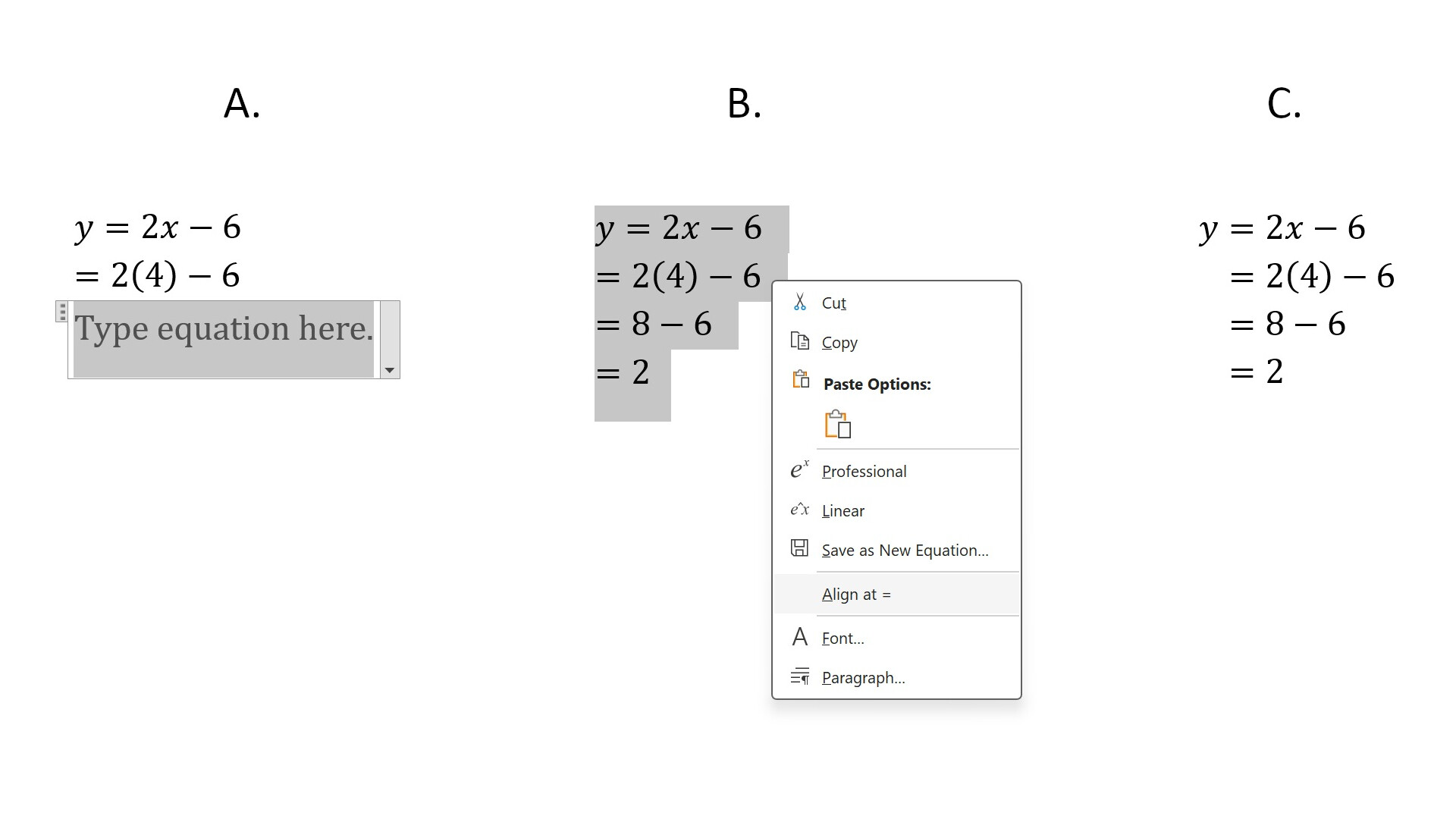
Below is taken from MS Word / Copilot 365:
A. A new line/equation is added with “shift + enter” which brings up the box to type in the new line
B. Highlighting and right clicking provides multiple options, including the “Align at = .” You can also align at a give character, such as < or > (a important generalisation.)
C. Shows the resulting correctly aligned multi-line equation. (If B. is done part way through entering all the lines, subsequently added lines automatically are aligned at the = sign.)