Hello, @dream !
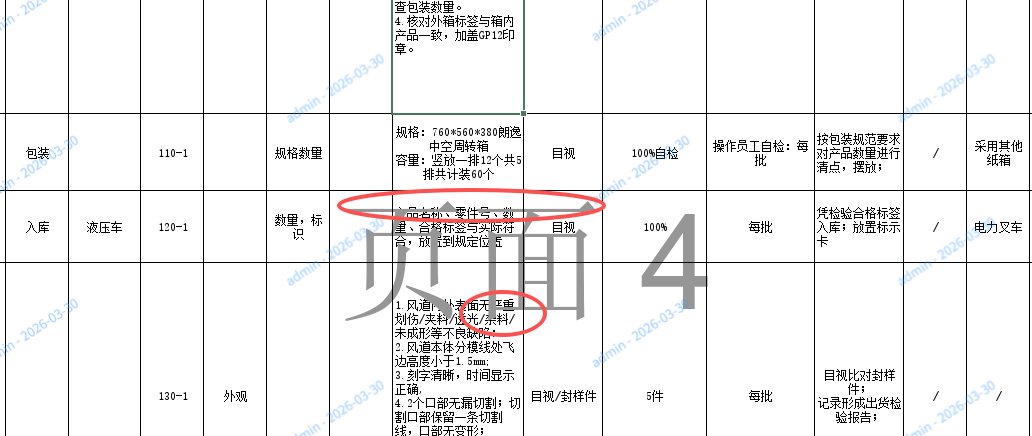
Just to clarify, do I understand correctly that you’re adding a header to a spreadsheet in ONLYOFFICE Spreadsheet Editor (like in this guide) and would like to make that header transparent or set it as the bottom layer; or do you mean something else?
Hello,Marix !
would like to make that header transparent or set it as the bottom layer
Hello,
We are currently checking this scenario on our side to confirm what options are available for spreadsheet headers in ONLYOFFICE, and we will get back to you with an update later. Thank you for your patience.
Thank you for your patience. To check this scenario on our side, could you please attach the sample spreadsheet file where this element is added? The file will help us verify the behavior and provide you with the correct recommendation.
EX.xlsx (26.6 KB)
1 Like
Hello, @dream !
Thank you for your patience. The large grey text like 页面 1 / 页面 6 is not a regular object in the spreadsheet file — it is shown because the sheet is opened in Page Break Preview mode, so it cannot be selected, sent to the background, or made transparent as a normal element.
If you need similar page numbering in your file, you can use the spreadsheet Header/Footer settings and insert page numbers there. ONLYOFFICE supports built-in header/footer fields such as Page number and Page count, and there is also a preset like Page 1 of ? . Please check this guide: Spreadsheet Editor - Insert headers and footers
Please note that headers and footers in Spreadsheet Editor are displayed only in the printed version of the spreadsheet, and at the moment there is no option to make such headers/footers transparent or place them behind the sheet content.
If you need visible page labels directly on the sheet, the workaround is to insert a Text Box or Image object manually and type the required text there.
After that, you can adjust the object transparency in its formatting settings: for images and text objects, ONLYOFFICE supports the Opacity option.
You can use these guides: Spreadsheet Editor - Insert text objects and Spreadsheet Editor - Insert images