Using Windows 11 and the latest OnlyOffice Desktop, version 9.2.0.100
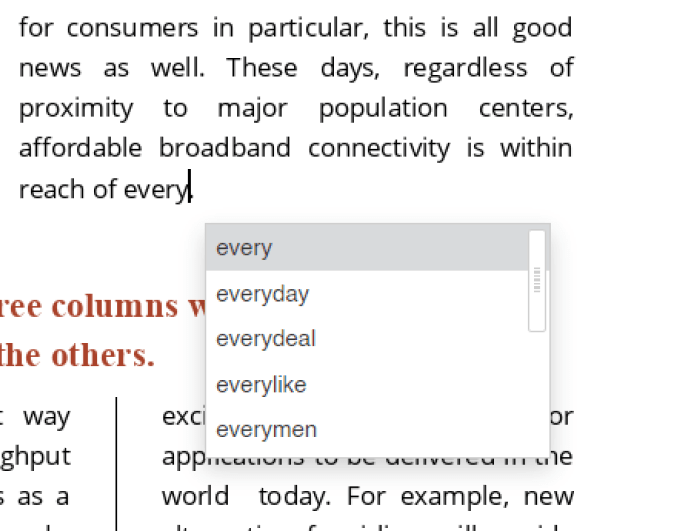
How do I disable the autocorrect suggestion popup in the document editor? The only way I can dismiss it is to hit Space, then I have a space character I don’t want. Enter and Esc do nothing.
Been through all the settings. Turned off spell checking. In the Proofing settings, I’ve turned off anything relevant. Nothing works. Tried all the online suggestions as well.
Any help would be appreciated, as right now, it’s a deal killer for me.
Yes it was.
Not a Windows setting, because LibreOffice didn’t exhibit the problem, nor any other app. I tried everything.
An uninstall/reinstall solved the issue.
Verified. The autocomplete plugin is the issue, and it appears it’s broken.
When an autocomplete suggestion appears, I can’t use the down arrow keys to select a word from the list. I have to take my hand off the keyboard, and click the word I want. But when I do that, the keyboard freezes. If I hit Enter, it erases text to the left of the cursor. Continuing to hit Enter erases more text to the left.
I’d like to inform you that the latest version 1.1.0 of Autocomplete plugins brings possibility to choose and apply items from suggestion list with a keyboard. Please update the plugin and check it out.