Do you want to: Ask a how-to question
OO version production:
ONLYOFFICE Community Server 11.5.975
ONLYOFFICE Control Panel 3.0.385
ONLYOFFICE DocumentServer-EE 6.4.2
ONLYOFFICE XMPP Server 11.0.63
OS: Windows server 2019 1809 build 17763.7678
Browser version: Chrome 140.0.7339.208 (64bit)
OO version development:
ONLYOFFICE Community Server 12.7.1304
ONLYOFFICE Control Panel 3.5.434
ONLYOFFICE DocumentServer-EE 9.0.4
ONLYOFFICE XMPP Server 12.0.92
OS: Windows server 2022 21H2 build 20348.2932
Browser version: Chrome 140.0.7339.208 (64bit)
Type of installation of the Document Server (docker, deb/rpm, exe, please point us to the installation guide that you used as well): ONLYOFFICE_Workspace_Win-install.latest.exe (ver 24.12.840.0) and onlyoffice-documentserver-ee.exe (ver 9.0.4.50) Installing ONLYOFFICE Docs Enterprise Edition for Windows on a local server
Additional information:
Hello,
I have an outdated version of OnlyOffice in production. The company has just renewed the license, so I can now update it.
I cloned my production environment to check compatibility before updating, and I encountered several issues related to the fact that there are multiple versions installed on it. So I started with a freshly installed VM running Windows Server 2022 (see specifications in the description).
From my clone of the production VM, I ran a backup simulation to export the data to my new VM. It took about 2 hours and I ended up with a .tar.gz archive that is 111 GB. Is this normal, given that we don’t have any videos, 50 simultaneous connections and only text files? I also realized that I don’t have full access to the control panel until I add the license file. Is having two OO servers running likely to cause me any problems?
Before taking action, I wanted to know if there are any other preparatory tasks to be done? I have another question. I’m taking advantage of this update to upgrade to Windows Server 2022, but could I push it to Windows Server 2024?
Document Server is already a part of Workspace package. I recommend installing Workspace Enterprise directly, that way you won’t have 2 separate Document Server, which may cause issues indeed.
However, if you have options to clone machines, I’d rather suggest cloning old machine and trying to update it via Control Panel. There is huge leap in versions, database schemas are now a little different, which also may cause issues on most recent available version of Workspace and its components.
Hello @Constantine
I can do what you ask, but as explained above, this VM is a stack of installations without cleaning. The first installation was done without a license using a community version, the second with an enterprise Doc server license, and the third with extended support because it can’t access web.
It’s on a LAN that don’t access the world wide web. So an update through the Control panel is not an option here.
I would like to start from scratch to avoid any conflicts and, above all, start with a VM that would be on Server 2022 or even 2024 if you can confirm that it is compatible. The only part I am keeping is the database from my old installation. And that is where the question of compatibility between the old database and the new installation comes in. I have tested the main features in the new installation with my old database, but you tell me that the format has changed. What are the risks?
You download the installer that will update the components instead. The link to the installer is here.
If you have only the data base, but not the files from the old installation, then you won’t be able to open files from web interface. Also, if there is huge mismatch in database schema that the actual version of Workspace expects, then these conflicts may cause various issues in portal functionality.
If you VM does not have access to the internet, then updating with the installer is the best option. Once old instance is updated, you can create a backup to restore it on the new instance/VM.
Thank you for the reply.
I do have the old VM still running.
I have made a clone for debug purpose.
I will proceed like you said, update the production side, start a backup and export this backup to his new host VM.
I’m in the middle of the process of purchasing the windows license and create the final VM.
I’ll let you know how it came out.
I made my new VM with windows server standard 2025.
I first tried to install OO without internet connection, only using the link provided to retrieve the binaries, that way, impossible to finish the installation. Stuck on the process for multiples days.
I opened internet connection and I manage to fully installed OO.
The first time I tried to also install the latest Document server update with the binaries, doesn’t work with my custom installation, this has created a disparity in the secrets present in the different JSON files.
Move back to a previous snapshot and managed to access to the control panel but now I’m stuck.
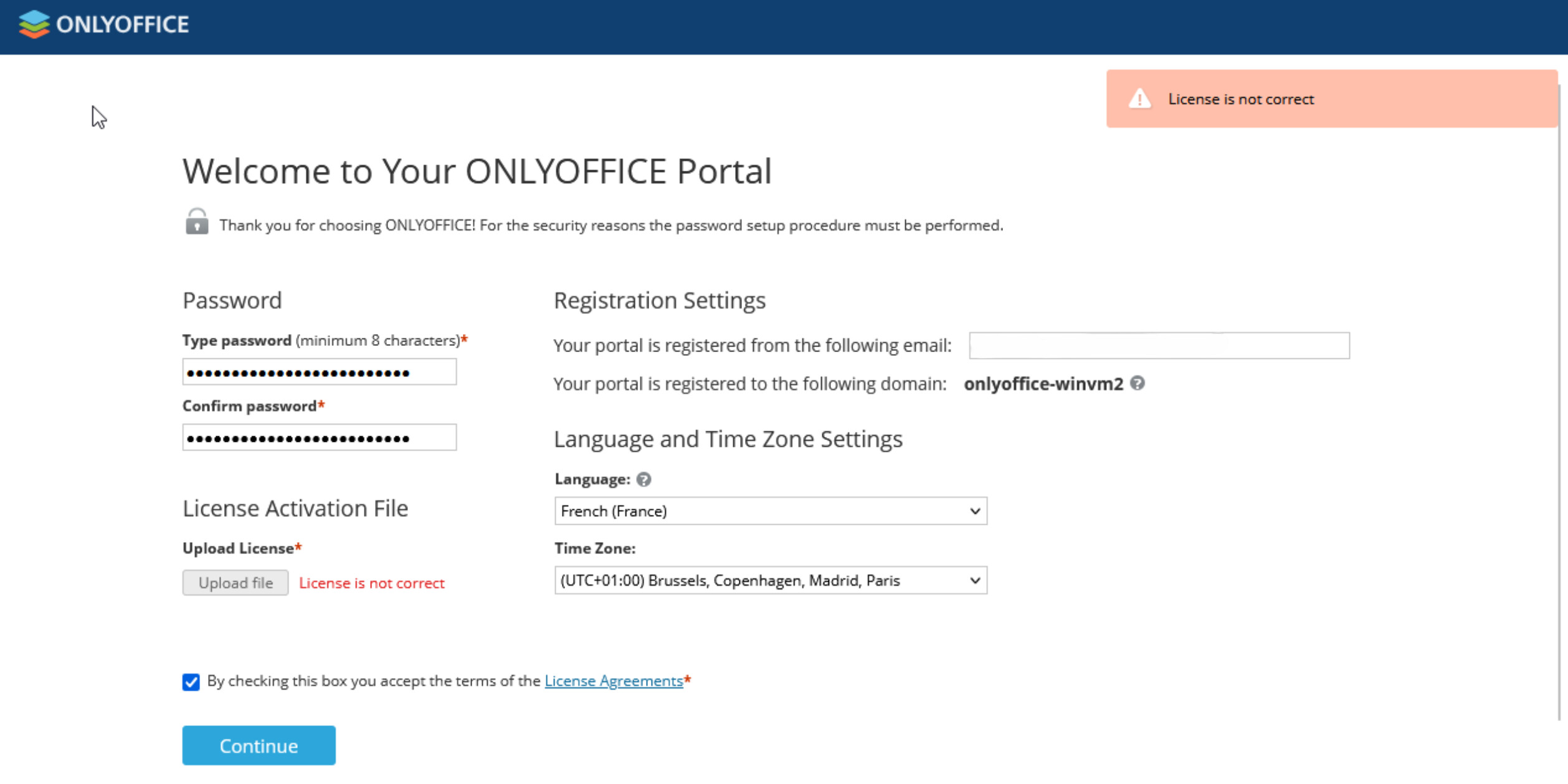
When I upload my license I got an error: license is not correct.
I did not temper the license and I don’t have further explanation on the why the license is not correct.
I can provide you the file in MP if needed.
Hello,
Let me start again to clarify the situation
I work in a virtualized environment.
I cloned my production VM to test the upgrade.
I have a valid Document Server license.
So I took this clone, which runs on an old lifetime license, and applied the updates via Control Panel.
At the same time, on another VM running Windows Server 2025 with all the latest updates, I installed the latest version of OnlyOffice directly using the binaries downloaded from here: https://download.onlyoffice.com/install/windows/enterprise/ONLYOFFICE_WorkspaceEnterprise_Win-install.latest.exe
I took several screenshots of the VM at different stages in case I needed to go back.
I then wanted to insert the license via the Control Panel, but when I clicked on upload, it displayed: License is not correct.
I read that opening it with a text editor could corrupt the file, so I downloaded my license again, but got the same error.
I also read that the license is associated with a machine.key and that this value can change between two snapshots (I’m not sure how valuable this information is). In any case, customer service kindly generated a new license.
But now I’m stuck. For production testing purposes, I’ll have to test importing data from the old VM to the new one, which means adding the license and taking a snapshot.
For operational reasons, I will need to take snapshots after inserting the license. Should I expect any issues with the machine.key value? How should I proceed to potentially fix this value, if possible? Or should I proceed in a completely different manner?
Here a screenshot from http://localhost/Wizard.aspx
There is quite a lot of information, so let’s break it down into direct pieces for clarity.
Did you manage to update this clone of original Workspace instance? In general, do I understand correctly that this is the instance you want to move the date from?
Does the activation with the new license let you pass the screen with password setup?
Answering the questions and resolving the doubts:
That is not true. License has no correlation to machine key.
Here is the link to general guide on using Control Panel to make backups and restoring them:
There is a note in “Data Restore” section that says:
Due to the new mechanism of password encryption, there is no possibility to restore the password from the backup using the core.machinekey key, which differs from the original one. To ensure correct portal operation, specify the old server key in the web.appsettings.config , TeamlabSvc.exe.Config files, and in the Control Panel production.json config file before restoring the backup on a new server.
This must help you with the machine keys managements between both instances.
thank you for your detailed answer.
Let me address each points:
Did you manage to update this clone of original Workspace instance? In general, do I understand correctly that this is the instance you want to move the data from?
Yes I update all the components before doing a backup cycle on the clone.
I do manage to update all the installation without issues.
Does the activation with the new license let you pass the screen with password setup?
It does not. I’m stuck at the registry point like shown in the screenshot.
I asked to my license manager and he answer me to open a ticket but what I understand is that we only purchase the Document server license and not a renew of our initial plan so I only have 5 tickets.
And I’m a bit confuse because when I’m in the control panel and I want to update the document server, it’s impossible to do it before updating all the components. So I do I proceed to update only the Document server since my license for Worspace is expired ?
I understand for the machine.key point, thank you.
There is no direct correlation between the license and updating process. Since Document Server is tied to everything, to make sure that the portal runs as expected it is indeed recommended to update other components first.
Just to clarify – did you install Workspace Enterprise edition on new VM?
Yes I do install enterprise version on the new VM: ONLYOFFICE_WorkspaceEnterprise_Win-install.latest.exe
I used the link that was send to me via the support.
The first license we got was for a lifetime use of Workspace enterprise edition but in fine, we only use Document since we have separate mail, project and chat system.
My biggest urge is to make a flawless transition to the new OO version. That’s why I install this version in the first place