Report a bug
I have a spradsheet into which I am copying figures, and I am trying to sum them.
(the real case is more complex, I am creating a named table, and I am using sumifs", but alreayd, I can see that even without named array, and a simple sum, I get the error)
So,
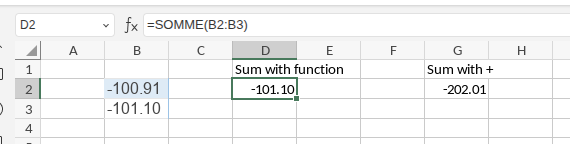
- column B, the 2 values I copy for test
- column D: when doing a sum over these 2 values, no sum is being done, only the last value is displayed
- column G, if I do a sum with “B2+B3”, sum is correctly done
Maybe there could be somehting with unit separator “.”
My regional settings are to use “,”, but because the values I am copying have a “.”, I am changing this settings in advanced parameters to use “.”.
I am using 9.1.0.67 that is currently in use in Infomaniak cloud office system.
My OS is Ubuntu 25.10, and web browser is Vivaldi.
Please, is there any way to solve this?
Hello @Pierrot,
We tested the scenario on Document Server 9.1 in the Vivaldi browser and could not reproduce the issue: the sum is calculated correctly both with the SUM function and using the “+” formula.
Please make sure that the values you paste are recognized as numbers (not text), and that the decimal separator in your editor matches your data and regional settings.
If the problem persists after these checks, could you also record a short video showing the issue and, if possible, attach the problematic spreadsheet file? This will help us investigate further.
Hello, i am sorry, at the moment, i am afk,
But i think it is exactly what you warn about.
I did make some tests yesterday, and when editing the numbers, rewriting them the same and pressing enter, then the formulas work.
So how can you make sure a copied pasted value is taken as a number an not a text?
(Apart from editing each cell individually?)
Hello @Pierrot,
Paste Special feature in ONLYOFFICE after pasting numbers:
- After you paste, click the small Paste Special “CTRL” button near the pasted cells.
- Choose “Paste only value” or “Value + number format” to ensure values are recognized as numbers, not text.
- Also, make sure your decimal separator setting in Advanced Settings matches the format of the pasted numbers.
This will solve the problem without needing manual editing.