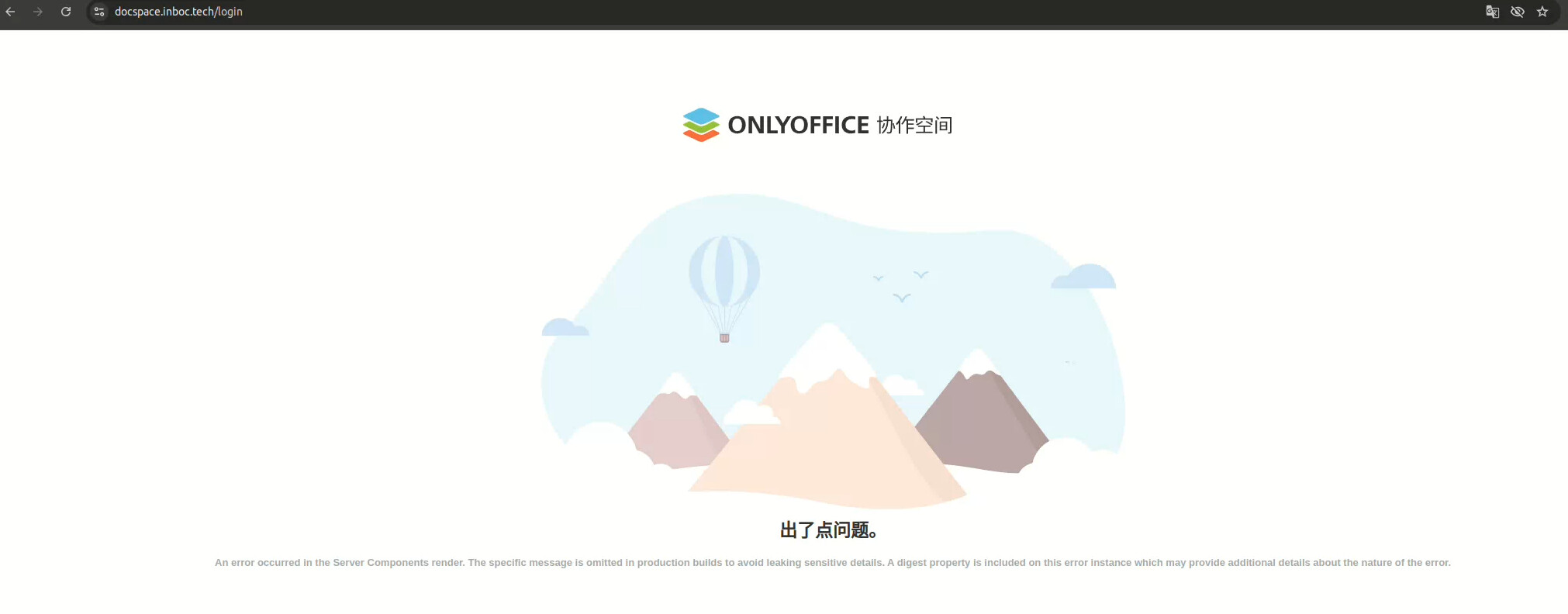
When I used the bash docspace install. sh Docker command, I switched to HTTPS using my own domain name and certificate. However, when accessing through a browser, I encountered an error that occurred in the rendering of the Server Components The specific message is omitted in production builds to avoid leaking sensitive details. A digest property is included on this error instance which may provide additional details about the nature of the error.
Are you by chance using cloudflare proxy?
Sorry,I did not use cloudflare.
I had this issue when using Cloudflare proxy, that’s why i asked. Double-check your SSL and your nginx/openresty configs.
Hello @ou-123
Was the portal accessible before installing your certificate? Are you running the portal in a private network? I’ve tried to check its ip address via SSL Checker without luck. Could you please double-check your DNS settings?
If it doesn’t help, please clarify how exactly you have installed the portal (guide, installation type) and provide us with DocSpace logs folder once the issue is reproduced (it should be located here: /var/lib/docker/volumes/onlyoffice_log_data/_data/ )
Dear @ou-123
Could you please specify which email address you use during the authorization step? Also, do you use 2FA?
I encountered the same web page error. I use a proxy server. I am sure of my settings, other services work fine through the proxy. I do not use the built-in secure connection tools of the service. Has anyone found a solution to get rid of the error? Judging by the current available messages, there is no solution anywhere.
Reinstalled the service as a package on Ubuntu. The result is the same. When accessing through a proxy, there is no access.
So, I defeated this problem!
This instruction helped me Switching your ONLYOFFICE DocSpace Community to HTTPS when installing from RPM/DEB packages
But not right away!
At first I tried to get a certificate as the instruction begins, but I didn’t take into account a couple of things:
Make sure that you have ports 80 and 443 open to your server on the router. After that, request a certificate.
This didn’t work for me, because the ports were open to the synology server, on which the proxy server is running, on which I was trying to organize the path to the docspace server.
To avoid the error specified in the topic, it is enough to make 2 entries in the proxy server: we direct docs.domain to your server 192.168.Х.Х port 80 to port 80 and the second entry 443 to 80.
In this mode, access to enter the commands appears. But your document server will not work. Therefore, in order to use the secure SSL HTTPS protocol, you need to resolve the issue with the certificate.
In order not to change ports from Synology to the docspace server, I imported the certificates that I downloaded from the Synology server (section security - certificates - action - export certificate).
You are interested in 2 files from the archive downloaded from Synology: cert.pem and privkey.pem, copy them to the docspace server and specify the paths to them with a command like:
bash /usr/bin/docspace-ssl-setup -f docs.domain.my /home/user/cert.pem /home/user/privkey.pem
After installing the certificate, correct the entries of your proxy server to your server 192.168.Х.Х port 80 to port 80 and the second entry 443 to 443.
After that, I got access from the local and global network via HTTPS and a working doc server.
1 Like
Well done @lliax
I hope your guide will help other users in case necessary ports are occupied by Synology. Thank you!